Record a video with live translation on screen — and your face in it
Speak in your own language, let the translation appear on screen as you talk, and record all of it — the screen, your face in the corner and your voice — as one video. It takes two apps on the same device: GPT Realtime Assistant writes the translation and Reel records it. The only part that can go wrong is the order you start them in.
What ends up in the video
The translation app's screen: what you said, written out, and each sentence in the other language a moment after you finish it. Your face in a corner, from Reel's camera. Your voice, from the microphone. One MP4, with nothing to line up in an editor and no subtitle file to sync, because the words on screen were there when you said them.
People record this for a handful of reasons:
- A video message to family who speak another language, with your words in theirs on the screen as you say them.
- A language lesson that shows a sentence in both languages while the teacher says it.
- A travel video that shows how a conversation was actually translated, rather than describing it afterwards.
- Showing someone how live translation works before they try it themselves.
Why the order matters
The two apps behave in opposite ways, and the steps below exist because of it.
GPT Realtime Assistant ends a live session the moment it stops being the app in front: when you switch to another app, pull down Control Centre, or the screen locks, the session closes with "App inactive. Realtime session closed." On a Mac, clicking into another app's window can end it too. Reel is the opposite: it records the whole screen, so the recording carries on while you move between apps.
So the rule is short. Start the recording first, then the session. End the session first, then the recording. Anything you do in Reel while the translation is running ends the translation, not the recording.
Set up the translation first
In GPT Realtime Assistant, before anything is recording:
- Tap Translate and switch on "Translate chat and live session". Set To to the language the viewer reads, and From to the language you will speak — or leave it on Auto Detect.
- Make the words big enough to read in a video: Settings › Appearance › Chat Font Size, Large or Extra Large. Text that is comfortable on your own screen is small in a recording watched on someone else's phone.
- Do not tap Start yet.
Then set up Reel
In Reel:
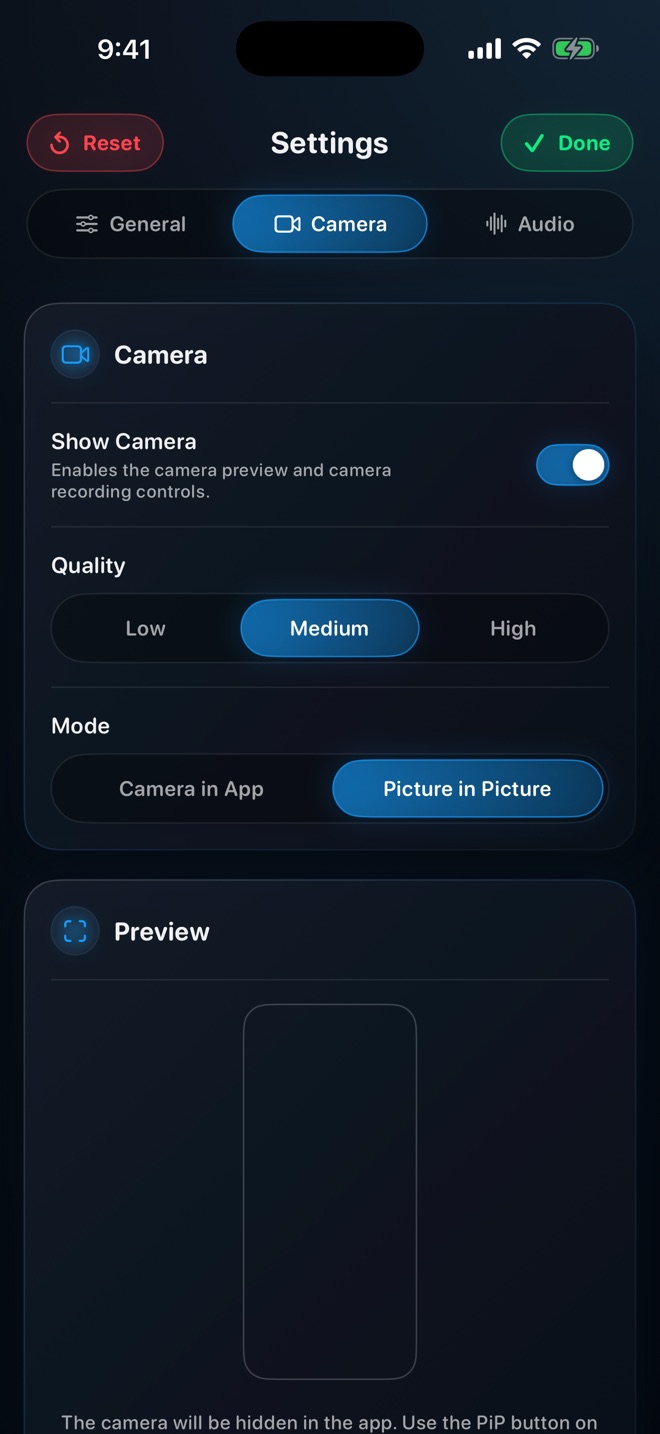
- In Settings → Camera, turn on Show Camera and choose Picture in Picture. That is the mode that follows you out of Reel into another app; Camera in App stays inside Reel and would not be in the shot.
- Tap the Picture in Picture button on the main screen so the camera floats as a bubble.
- In Settings → General, turn on Lock Orientation, so the video stays the way you started it if the device moves in your hand.
- Turn on a Focus such as Do Not Disturb. A banner that arrives mid-take is in the video, and pulling it away can end the translation.
Recording on iPhone and iPad
With both apps set up, the take itself is five steps:
- In Reel, tap record and confirm in the sheet iOS shows. The recording has started.
- Go to GPT Realtime Assistant. The camera bubble comes with you. Drag it to a corner where the translation does not appear — usually the top — before you go any further.
- Tap Start (Start Session on iPad) and speak. Finish each sentence and pause: the translation appears when you stop, not while you are mid-thought.
- When you have said everything, tap End.
- Stop the recording from the red indicator at the top of the screen, or by going back to Reel. The MP4 is in your photo library.
Recording on a Mac
The idea is the same, and the rule about clicking matters more, because on a Mac every click in another app's window makes that app the active one.
- In Reel, turn on Show Camera, choose Pop-out Window in Settings → Camera → Mode, and click Camera in the toolbar to open the camera window.
- Arrange the windows so the camera window sits over a corner of GPT Realtime Assistant's window without covering the translation. Reel records the whole display that the camera window is on.
- Start the recording with the camera window's own record button, then click into GPT Realtime Assistant's window and click Start Session.
- Speak. When you have finished, click End Session first. Only then click the camera window and stop the recording — with its button, or with ⌘R, which works while a Reel window is the active one.
Sound
Your voice reaches both apps from the same microphone: GPT Realtime Assistant hears it to translate it, and Reel records it into the video. Speak towards the device, at arm's length or closer, and the recording and the translation both improve.
Leave Record audio in single track on in Settings → General unless the video is going into an editor. One track plays the same everywhere you send it.
If the translation stops halfway
Something made GPT Realtime Assistant stop being the app in front — a swipe to another app, Control Centre or a notification pulled down, the screen locking, a click on another window on a Mac. The recording is still running. Go back to GPT Realtime Assistant, and the session button reads Resume (Resume Session on iPad and Mac): tap it and carry on. The gap is in the video, and so is everything before it.
On an iPhone, set Auto-Lock to a longer time in Display & Brightness before a long take, so the screen does not lock while you are talking.
Check the words before you send the video
Live translation keeps a conversation moving; it is not a certified translation. Names, numbers and anything said quickly deserve a look in the finished video before it goes to someone who will take it at its word. If a sentence came out wrong, recording it again takes a minute.
And the usual courtesy of any recording applies: if someone else is speaking in the video, tell them it is being recorded and translated before you start.
Can I screen record while a translation app is running?
Yes. Start the recording in Reel first, then open the translation app and start its session. Reel records the whole screen, so the recording keeps going while you use the other app.
Will my camera be in the video?
Yes, with Picture in Picture chosen in Reel's camera settings on iPhone and iPad, or the pop-out camera window on a Mac, placed where the translation does not appear.
Is my voice recorded?
Yes. The microphone feeds both apps: GPT Realtime Assistant translates what you say and Reel records it into the video.
Why did the translation stop when I opened Reel?
GPT Realtime Assistant closes a live session whenever it stops being the active app. Start the recording before the session, and end the session before you stop the recording — on a Mac, stopping means clicking a Reel window, and that click is what ends a session still running.
Does the translation get spoken aloud?
No. The translation appears as text on screen, which is what the video shows.
Does it work on iPhone, iPad and Mac?
Yes, both apps run on all three, and the steps are the same apart from the camera, which is a floating bubble on iPhone and iPad and a pop-out window on a Mac.