Picture-in-picture camera overlay for screen recordings, explained
Two things get called "picture in picture": the system feature that floats a video over other apps, and the general idea of a small camera window in a corner. Reel offers both, and they behave differently in ways that matter for a recording.
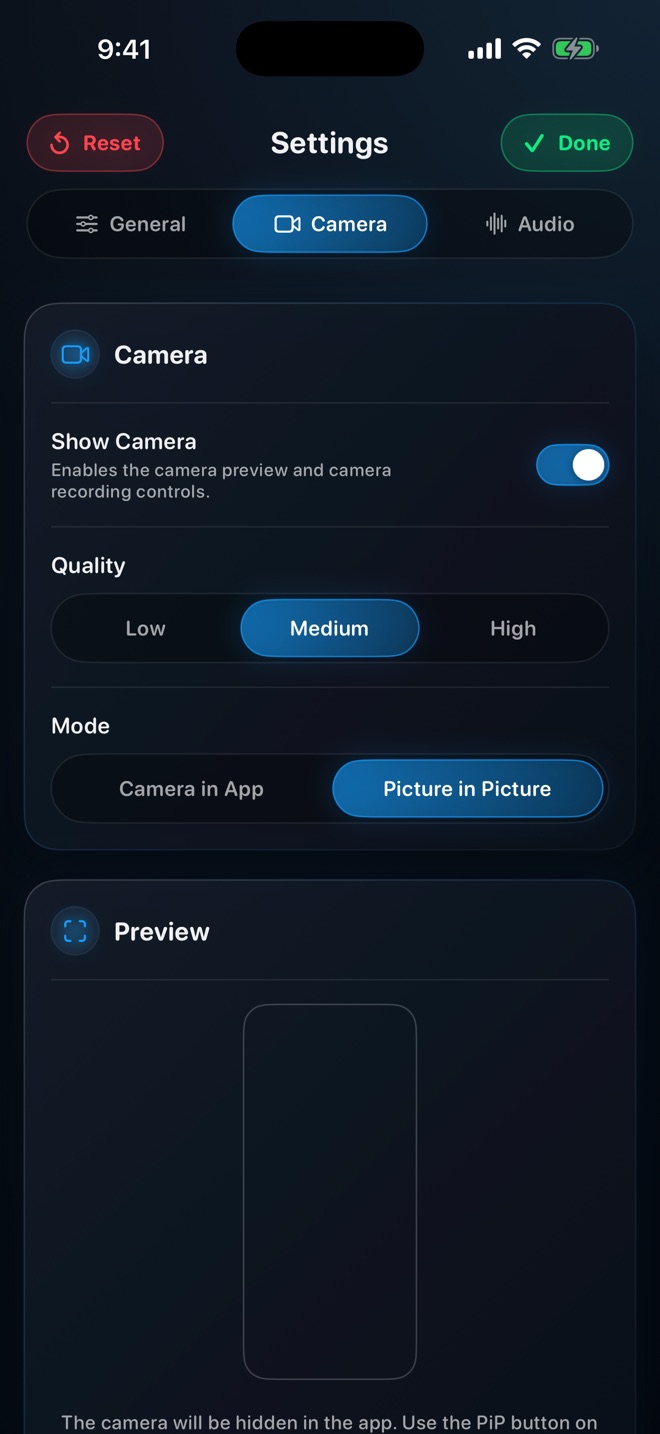
Camera in App
The camera preview lives inside Reel. You can drag it, resize it, put a background behind it, flip and rotate it. It is the richer mode — but it only shows while Reel is in front. Use it when Reel itself is the stage: reacting to a clip in the built-in player, presenting from an image, recording a piece to camera.
Picture in Picture
This is iOS's own PiP. When you leave Reel to record another app, the camera detaches into a floating bubble the system manages. It stays on top of everything, you can drag it to any corner, and it is what the screen recording sees. Use it for recording other apps with your face visible: a tutorial in Safari, a game, a walkthrough of your own app.
Because iOS owns the bubble, its size options are the system's, and Remove Background is not offered in it — blur, an image or a video behind you still work. That is the trade for being able to leave the app.
On Mac: a floating camera or a pop-out window
macOS does not have PiP in the same sense, so Reel has two camera modes instead, in Settings → Camera → Mode. Floating Window, the default, keeps the camera inside Reel's window and draws it into the recording at the same place and size, even when other windows cover Reel. Pop-out Window opens the camera as its own window that stays above the others — the toolbar's Camera button opens it — to put over a corner of whatever you are recording. A pop-out on the recorded display is always in the file; to keep it out, put it on a display you are not recording.
Choosing
- Recording another app on iPhone or iPad: Picture in Picture.
- Reacting to a video or recording to camera inside Reel: Camera in App.
- Recording on Mac: the pop-out window, positioned over the capture area.
Can I switch modes mid-recording?
No. Choose before you start; the recording uses whichever mode is active when you press record.
Why did the bubble disappear when I opened another app?
Picture in Picture must be the chosen mode and iOS must have PiP allowed for Reel in Settings → Reel → Picture in Picture.