The best screen recorders with a face cam for iPhone, iPad and Mac (2026)
A screen recorder with a face cam has one job the built-in recorder cannot do: put you in the video while you show something. The apps that do it differ in ways their names do not tell you — whether the camera is live over other apps or added afterwards, whether the free version stamps a watermark, and whether you pay once or every week. Here is how six of them compare. One of them, Reel, is ours; the rest are described from their own App Store listings as of October 2026.
What to check before you choose
Five questions separate these apps far more than their feature lists do:
- Is the camera live while you record, over any app — or only inside the recorder's own screen, or added in an editor afterwards?
- Does the free version put a watermark on the video, or cap its length?
- Can you control your voice and the app's sound separately, and on a Mac, record the sound the computer is playing?
- Where does the file go — straight to your library as a file, or to the vendor's cloud as a link?
- What does it cost over a year: once, monthly, or weekly?
The short answer
- Reel — a live face cam over other apps on iPhone and iPad, no watermark, no time limit, no account; pay once if you want Pro.
- Record it! — the best-known iPhone recorder, with reactions and an editor; its listing describes the live camera overlay on supported iPads.
- Go Record — screen recorder plus a reaction-video editor, aimed at creators.
- The built-in recorder — free and instant, but no camera at all.
- Loom — work videos shared as links, with captions and transcripts.
- OBS Studio — free and endlessly flexible on a Mac, with a learning curve to match.
Reel (ours)
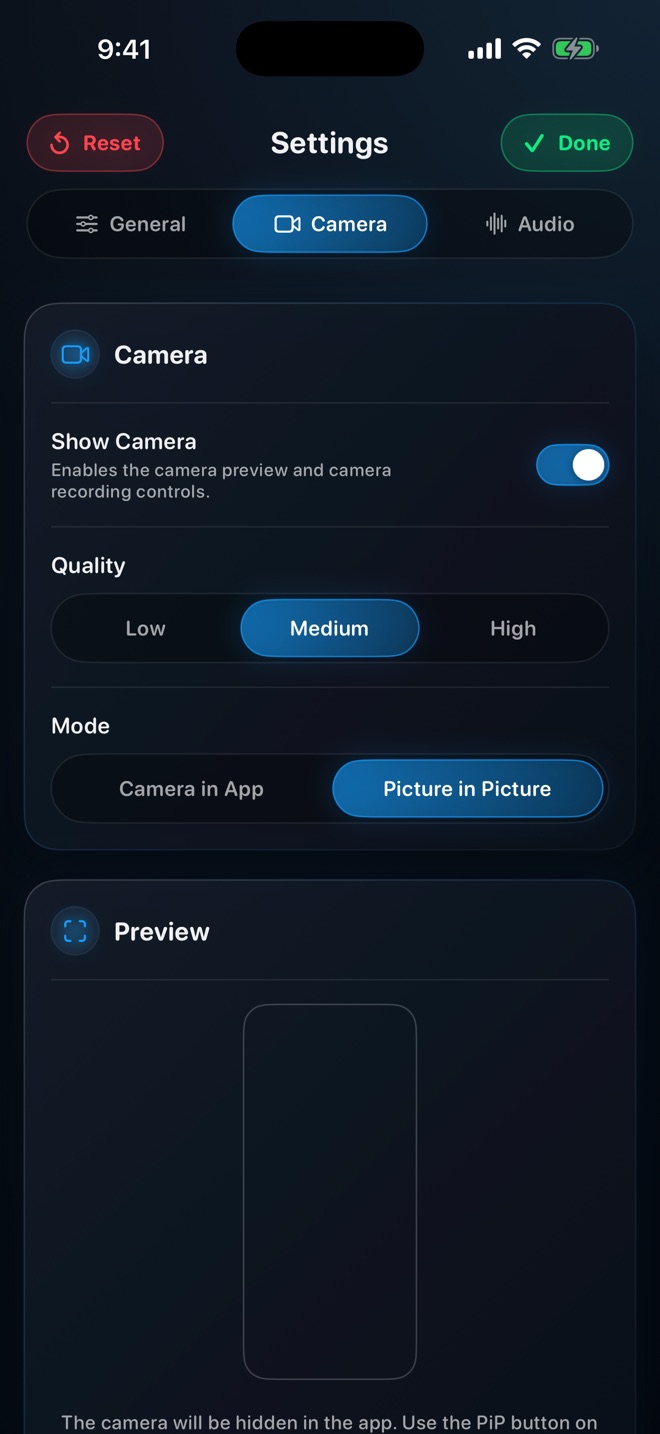
Reel records the screen and the front camera into one MP4 on iPhone, iPad and Mac. On iPhone and iPad the camera can sit in Picture in Picture, and that bubble stays live and in the recording while you move into other apps — a game, a browser, a translation app. On a Mac the camera is drawn into the recording from Reel's window, or opens as its own window that stays above the others, and system audio is recorded without installing anything.
It keeps your voice and the app's sound as separate levels, can blur, remove or replace what is behind you, and saves a plain file: to Photos on iPhone and iPad, wherever you choose on a Mac.
The free version has no watermark, no time limit and needs no account. On iPhone and iPad it shows ads between sessions; the Mac app has none. Pro removes the ads and, on a Mac, adds full native resolution; in the US it is $0.99 a month, $9.99 a year, or $14.99 once.
What it does not do: there is no editor or trimming, no upload or share link, no live streaming, and on a Mac it records a whole display rather than one window. It needs iOS, iPadOS or macOS 26.
Record it! :: Screen Recorder
The most-rated iPhone screen recorder in the US App Store, with over 450,000 ratings. Its subtitle is "Reaction, Face Cam, Video Editor": it records the screen with a tap and has a built-in editor for trimming and adding a reaction. Its own description says the live camera overlay while recording is available on supported iPad models; on iPhone the face cam is part of the editing. Pro is a one-time purchase in its listing.
Best for: people who want an editor in the same app and record mostly on iPad, or who are happy to add the reaction after the recording.
Screen Recorder: Go Record
Around 110,000 US ratings, subtitle "Face Cam Reaction Video Editor". Like Record it!, it pairs the recorder with an editor built around reaction videos and calls itself built for creators. Paid tiers are listed at a few dollars each.
Best for: reaction videos edited on the phone.
The built-in iOS and macOS recorders
Control Centre on iPhone and iPad, and Shift-Command-5 on a Mac, record the screen for free with nothing to install. On iPhone you can turn the microphone on with a long press. Neither puts your camera in the video, and the Mac recorder does not capture the sound the Mac is playing.
Best for: a quick clip with no face and no particular sound. For anything with you in it, you need one of the others.
Loom
Loom is built for work: record your screen and camera, and the video is uploaded and shared as a link, with captions and transcripts. Its App Store listing describes 14 million users across 200,000 companies; the app is free to download, and paid plans are sold outside the App Store.
Best for: quick video messages to colleagues who will watch in a browser. Less suited to a video you want as a file — for social media, an editor, or to keep offline.
OBS Studio (Mac)
OBS is free, open source and runs on Mac, Windows and Linux. You build scenes from sources — a display, a window, a webcam, audio inputs — and record or stream them. It can do almost anything a desktop recording needs, and takes an afternoon to set up well.
Best for: streamers and anyone who wants full control on a computer and does not mind the setup. It has no iPhone version.
Which one, then
If your face has to be in the video while you use another app on an iPhone, and you want a plain file with no watermark, that is what Reel was made for. If you want an editor in the same app, Record it! or Go Record. If the video is a message to a colleague, Loom. If you are on a Mac and want to build scenes and stream, OBS. If you do not need to be in the video at all, the built-in recorder is enough.
Which iPhone screen recorder shows my face while I use other apps?
Reel does, with its camera in Picture in Picture: the bubble stays live over other apps and is in the recording. Record it!'s listing describes its live camera overlay on supported iPads; on iPhone it adds the face cam in its editor.
Is there a free screen recorder with a face cam and no watermark?
Reel's free version has no watermark and no time limit, on iPhone, iPad and Mac. It shows ads between sessions on iPhone and iPad; the Mac app has none.
Can a screen recorder capture the sound my Mac is playing?
The built-in Mac recorder cannot. Reel records system audio through Apple's ScreenCaptureKit with nothing to install, and OBS can as well once it is set up.
Do I need an account?
Not for Reel, Record it! or the built-in recorders. Loom works through an account, because the video is uploaded and shared as a link.