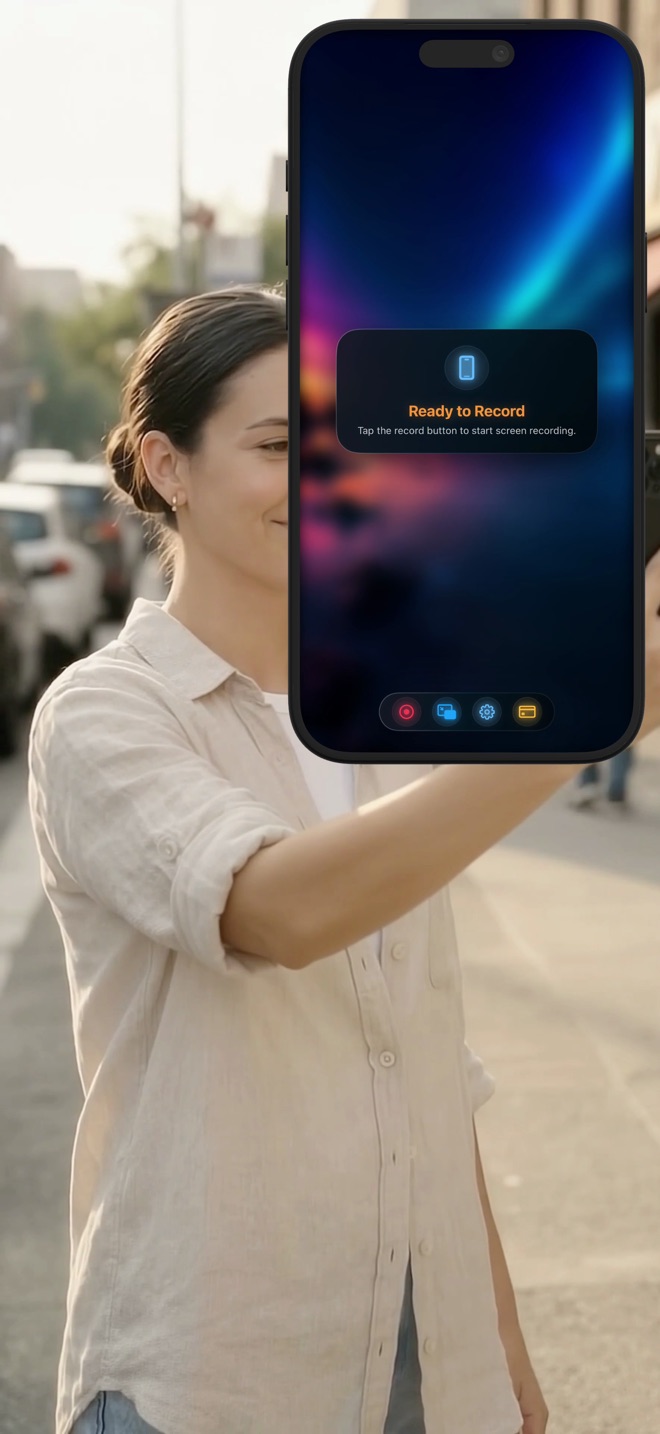
How to screen record on iPhone — and how to be in the video
iOS records your screen without any app at all, and for most purposes that is the right answer. It stops being the right answer the moment you need to be in the video. Here is the built-in way in full, exactly where it runs out, and what to do then.
The fastest way: Control Centre
Every iPhone running a current version of iOS can record its own screen with no app installed. The control is just hidden until you add it.
- Open Settings, then Control Centre, and add Screen Recording to the controls if it is not already there. This is a one-time step and the reason most people think their iPhone cannot do it.
- Swipe down from the top-right corner to open Control Centre and tap the record button — the filled circle inside a ring.
- A three-second countdown runs, then Control Centre closes and recording starts. Leave Control Centre or it will record itself.
- Do the thing you are recording. A red indicator at the top of the screen shows it is running.
- Tap the red indicator and confirm Stop. The video lands in Photos as a Screen Recording.
The long press that most people never find
Press and hold the record button instead of tapping it and a sheet appears with two things worth knowing about.
The first is Microphone. Off by default, which is why a first screen recording so often comes back with the app audio present and the narration missing. Turn it on before you record, not after — there is no way to add it to a finished take.
The second is the destination: some apps register themselves as somewhere a recording can go directly instead of Photos. If the list has only one entry, that is normal.
What the built-in recorder cannot do
Four limits, and they are limits by design rather than oversights.
- It cannot show your camera. The recording is the screen and nothing else, so a tutorial made this way is a cursor moving in silence, or a screen with a disembodied voice.
- It gives you one audio mix. Your voice and the app arrive married together, and nothing can separate them afterwards.
- It records at the screen's own resolution, whatever that costs in file size. There is no quality choice.
- It has no layout. There is nothing to position, because there is nothing but the screen.
Recording the screen and your face in one take
The usual workaround — record the screen on the phone, record yourself on something else, line the two up in an editor — is where most people abandon the idea, and reasonably so. A recorder that captures both at once removes the step entirely: the camera is composited onto the screen recording while it happens and you get one finished file.
With Reel Screen Recorder installed, it is four steps.
- Open Reel and allow camera access when asked. Screen recording is confirmed in a sheet iOS shows when you start, and the Microphone button in that same sheet decides whether your voice is recorded.
- Turn on Show Camera in Settings → Camera and choose a mode. Camera in App keeps the preview inside Reel; Picture in Picture floats it over whatever you record.
- Tap record. iOS shows its own confirmation — that is ReplayKit, the system's own screen capture, which Reel records through rather than around.
- Do the thing you are showing, then stop from the red status indicator or by returning to Reel. The finished MP4 is saved to your photo library.
The two camera modes, and which one you want
Picture in Picture is the mode for recording other apps. The camera bubble follows you out of Reel and stays on screen while you move through anything else, so you remain visible while demonstrating something that is not Reel. Drag it to a corner that does not cover what matters.
Camera in App is for when Reel itself is the stage — playing a clip to react to, for instance, where everything worth seeing is already inside the app.
The size and position you choose are what gets recorded. This is the part worth being deliberate about, because a bubble covering the button you were pointing at cannot be moved afterwards. It is baked into the pixels.
Sound: two levels, and one decision
Your microphone and the audio the app plays are two separate levels rather than one switch, which means a demo with app sound and no voice, a voiceover with the app muted, or both together are each a setting rather than a compromise.
The decision is Record audio in single track, in Settings → General. Leave it on and you get one mix that plays everywhere — right for anything going straight to a message, a story or a bug report. Turn it off and the MP4 carries two audio tracks, which is what you want if the recording is going into an editor and you will lower the app under your voice.
One warning about turning it off: some players and upload paths read only the first audio track of a file, so a two-track recording can sound complete on your phone and arrive half silent somewhere else. Keep it on unless you are editing.
Resolution, and why the biggest is not the best
480p, 720p and 1080p are free. Source (Native) — the device's own resolution — is the one Pro tier.
Native is not automatically the right pick. A recent iPhone screen recorded natively produces a file large enough to be awkward to send, and for anything that ends up on the web it is re-encoded down anyway. 1080p is the honest default for a tutorial, a demo or a reel; native is for footage that will be cropped, zoomed into or kept as a master.
Orientation: the mistake that cannot be undone
If the phone rotates mid-recording, the recording rotates with it, and no edit puts that back. Lock Orientation in Settings → General fixes the layout of the recording itself, regardless of what the device does in your hand.
Worth turning on for anything you will move the phone during — which is most recordings made standing up.
It works the same on every iPhone
Screen recording is a system feature, not a per-model one, so the steps above are the same on an iPhone 13, a 15, a 16 or anything newer running a current iOS. What differs is small: from the iPhone 15 Pro onwards there is no ring/silent switch, and the Action button does that job instead — which matters because a phone in silent mode makes many apps play nothing, and a recorder cannot capture sound that was never produced.
Reel itself needs iOS 26 or newer. The built-in recorder has been there for years.
The ten-second test that saves the take
Everything that goes wrong in a screen recording goes wrong in the first second and is only discovered at the end. So before a recording you would be annoyed to lose:
- Record five seconds and say one sentence.
- Play it back with the volume up. Both your voice and the app should be there.
- Check the camera bubble is not sitting on top of anything you need.
- Check the orientation is what you intended.
How do I screen record on an iPhone?
Add Screen Recording to Control Centre in Settings → Control Centre, then open Control Centre and tap the record button. A three-second countdown runs and the video lands in Photos when you stop from the red indicator at the top of the screen.
Why is there no sound in my screen recording?
The microphone is off by default in the built-in recorder — press and hold the record button in Control Centre to turn it on. If the app audio is also missing, the phone was probably in silent mode, so the app played nothing to record.
Can the built-in screen recorder show my camera?
No. It records the screen and only the screen. Capturing both at once needs an app that composites the camera in while recording, or a second device and an editor.
Do I need to hold the phone a certain way?
No, but turn on Lock Orientation in Settings → General if you will move the phone while recording, so a portrait recording stays portrait.
Does it record at full resolution?
480p, 720p and 1080p are free. Source (Native), the device's own resolution, is a Pro tier. For anything going on the web 1080p is usually the better choice regardless.
Is there a watermark?
No.
Can I record a FaceTime or phone call?
No. iOS does not expose call audio to screen recorders, for privacy reasons.
Where do screen recordings get saved?
The built-in recorder saves to Photos as a Screen Recording. Reel saves a finished MP4 to your photo library.