Can You Screen Record FaceTime With Sound on iPhone & Mac? (Audio Rules & Workarounds)
Few surprises are worse than finishing a 30-minute FaceTime interview on your iPhone, opening Photos, and discovering complete silence. That silence is not a broken setting—it is a hardwired Apple privacy restriction on iOS telephony audio. Understanding where the wall sits saves you from losing irreplaceable calls.
Why every iPhone screen recorder mutes FaceTime and phone calls
When FaceTime, a cellular call, or a CallKit VoIP call is active on iPhone or iPad, iOS switches the hardware audio session into protected voice-chat priority. ReplayKit withholds call audio from both Apple’s built-in Control Center recorder and every third-party Broadcast Extension on the App Store—no exception exists.
Apple added a separate audio-only Call Recording button with participant disclosure inside Phone/FaceTime in recent iOS releases for supported regions, but video screen recordings on iOS still cannot tap CallKit audio streams.
What actually works when you need video + both voices (with consent)
Always inform every participant and follow local two-party or all-party consent laws before recording any call. Technically, moving the call off iOS CallKit onto macOS is the clean solution.
Recording a collaborative walkthrough on Mac instead
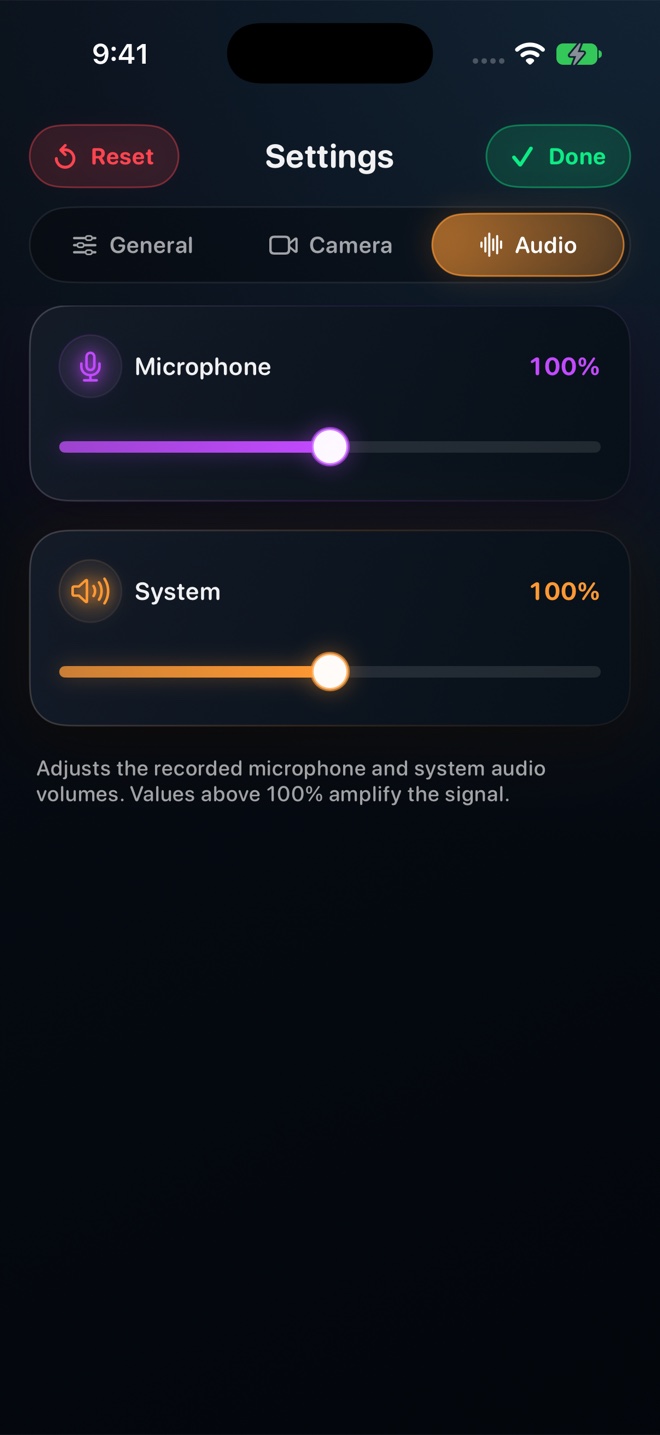
Take the video call in a browser or desktop meeting app on your Mac, open Reel on macOS, set System Audio (the remote guest’s voice) and Microphone (your voice) on independent sliders, and record the display. Always wear headphones on Mac so the guest’s voice from your speakers does not bleed back into your microphone.
Will turning Microphone On in Control Center record a FaceTime call on iPhone?
No. While an active FaceTime call owns the iPhone microphone, iOS blocks ReplayKit from capturing either side of the call.
Why should I wear headphones when recording a call on Mac?
Headphones keep remote voices purely inside System Audio so they do not echo back into your Microphone track.