How to Screen Record Zoom, Google Meet & Teams With Audio on Mac & iPhone
Whether you are archiving a training webinar, saving a client design review with permission, or recording your own presentation rehearsal inside Google Meet, Mac and iPhone treat conference audio completely differently. Choosing the right device before the meeting starts guarantees both voices land in the MP4.
Mac vs iPhone: Why Mac is the right choice for live meeting capture
On iPhone and iPad, Zoom, Google Meet, Microsoft Teams, and Slack Huddles open a voice-communication audio session that blocks ReplayKit from capturing participant audio—just like a phone call.
On macOS, however, ScreenCaptureKit captures desktop audio output directly alongside your chosen microphone input without virtual audio drivers like BlackHole or Loopback.
- Obtain participant permission before recording any live meeting.
- Join Zoom, Google Meet (in Safari/Chrome), or Teams on your Mac and plug in wired or AirPods headphones.
- Open Reel on Mac, select the same microphone you speak into, and verify both Microphone and System Audio sliders are unmuted.
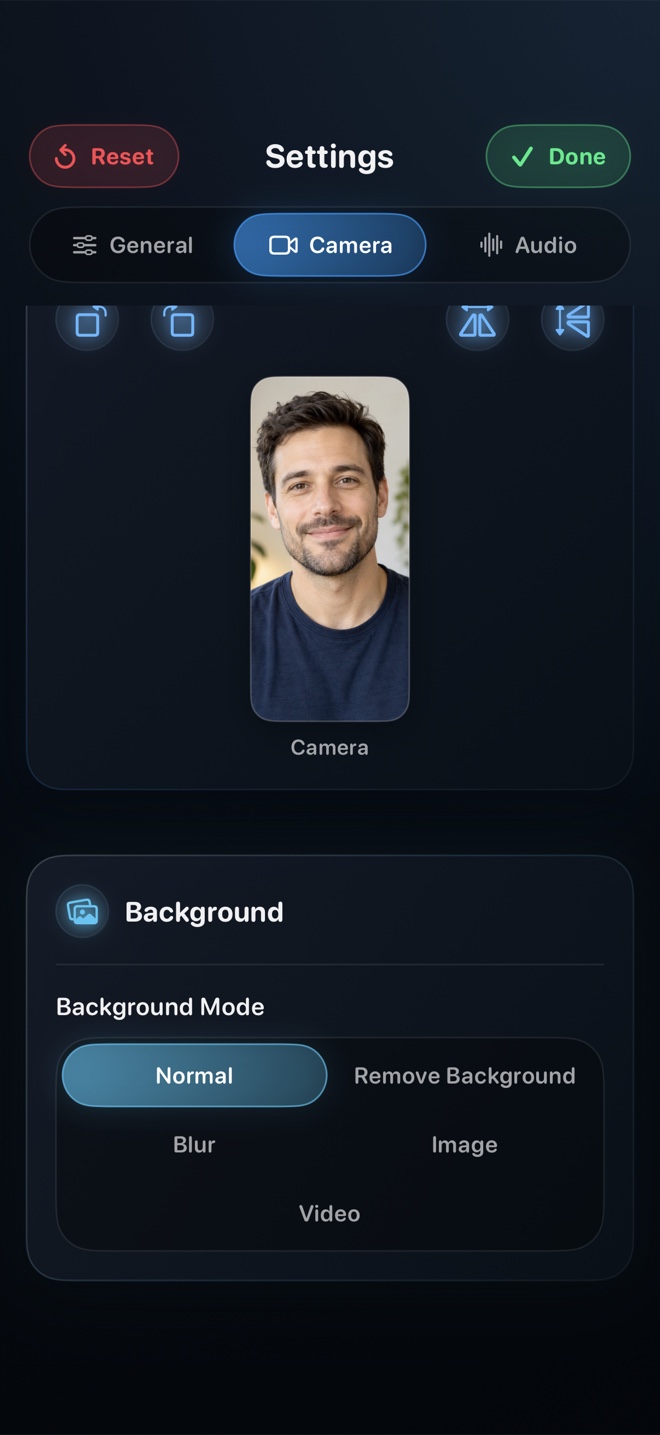
- Enable Show Camera only if you want an extra presenter overlay, or turn Show Camera off in Reel if your webcam tile is already visible inside the meeting grid.
- Press Command-R to start and stop, then save the local MP4 to Finder.
Why turning Show Camera off in Reel makes sense during a meeting
When Zoom or Google Meet is already displaying your camera tile on screen, macOS can share the webcam or you can simply let the meeting app render your video while Reel captures the display + system audio + mic. Conversely, if you are solo-presenting full-screen slides where Meet hides your self-view, Reel’s Pop-out Camera Window keeps you visible over your deck.
Run a 10-second pre-meeting audio check
Play any short YouTube or system sound through your headphones while speaking one test sentence in Reel before the call begins. Confirm both the desktop sound and your voice play back clearly in QuickTime.
Does screen recording on Mac send a bot into the Zoom or Google Meet call?
No—local display capture records pixels and ScreenCaptureKit audio locally on your Mac with no third-party cloud bot joining the roster (you should still always ask participants first).
Why did my iPhone Zoom recording have video but zero audio?
iOS blocks ReplayKit audio capture whenever a VoIP meeting app holds an active voice-chat microphone session. Record from macOS instead.