Stop echo and feedback in a narrated screen recording
An echo can come from the room, the routing or the way you are listening. Start by identifying whether the repeated sound is in the saved file. Changing every microphone and volume setting at once makes the fault harder to isolate.
Distinguish three different symptoms
A rising squeal while recording suggests a feedback loop that needs stopping immediately. A delayed copy of your voice in the saved file suggests that the voice reached the recording by more than one path. A hollow or roomy voice can instead be the microphone picking up reflections around you. These are clues, not a diagnosis from sound alone.
There is also a fourth possibility: the original recording is fine, but you are hearing a live monitor and delayed playback together. Close other playback windows and listen to the saved file by itself before altering the capture setup.
Start with a quiet, simple route
Use one intended microphone and one playback route for the test. If speakers are feeding sound back into the microphone, lower or stop that playback and try headphones. Apple recommends headphones or reduced monitoring volume when its QuickTime recording workflow produces feedback.
Headphones address sound traveling through the room; they do not automatically remove duplicate digital sources. In a configurable recorder, check whether the same application or microphone has been added twice. OBS’s mixer provides a useful place to observe which sources respond while you speak or play a sample.
Separate voice from app audio
Record one spoken sentence while the demonstrated app is silent. Then stop speaking and play a short sound you are allowed to use. Finally try the two together. Listen to each saved segment rather than judging solely from moving meters.
If voice alone is clean but the combined segment echoes, concentrate on the app playback and monitoring route. If voice alone is already doubled, examine the microphone sources and monitoring first. This sequence narrows the search without requiring you to guess which device the system selected.
Keep a minimal test log
- Stop any loud feedback and reduce monitoring before continuing.
- Record the microphone alone and note the active input.
- Record the app sound alone with the microphone muted or disabled for that test.
- Record both together using headphones if room pickup is suspected.
- Change one source or monitoring setting and repeat the failing segment.
- Keep the setting that improves the saved result, not merely what sounds better during monitoring.
Reel levels are not an echo-removal feature
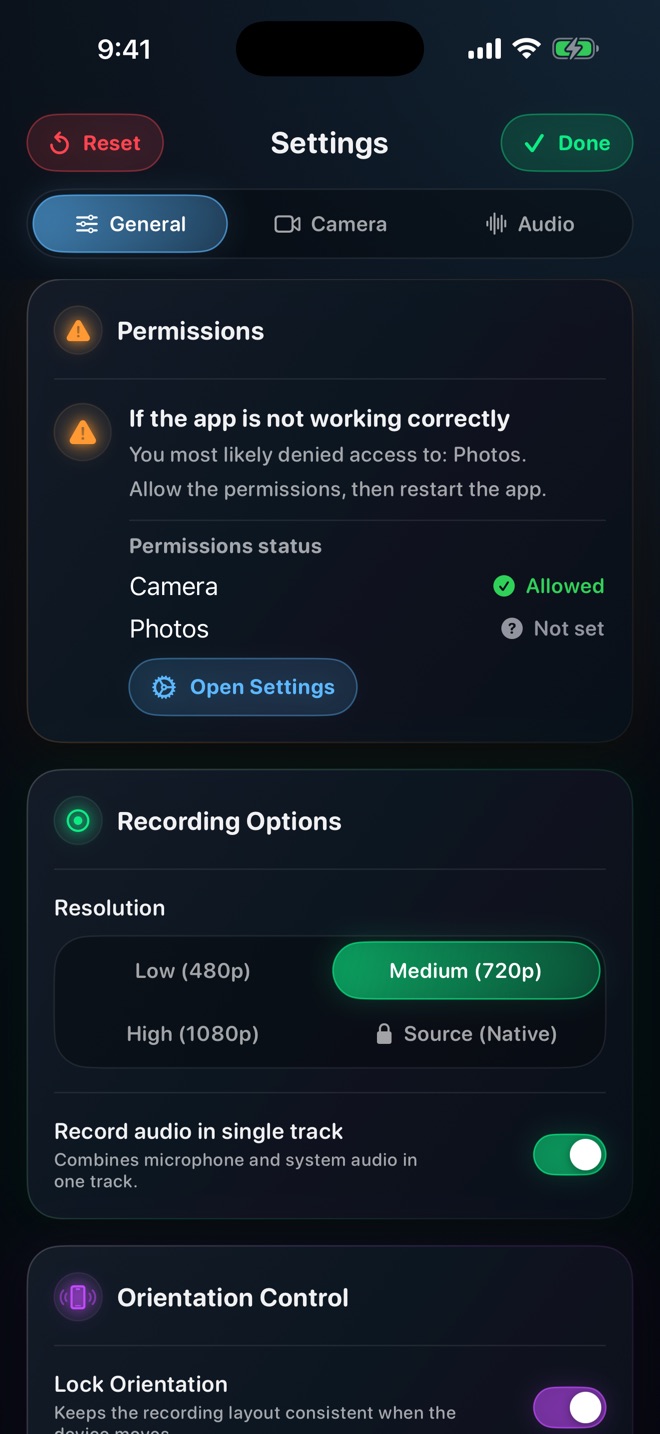
Reel has separate microphone and app-audio levels. Those controls let you check which contribution is causing a problem, but lowering a level is not a guarantee of removing room reflections or a duplicated source. A quieter echo is still an echo.
For the real take, restore the intended sources and make another representative test. If an external headset is involved, confirm that the recorded voice comes from the input you intended. Report the connection type and which of the three test segments failed if the problem remains.
Will headphones fix every echo?
No. They help prevent speaker sound from re-entering the microphone, but duplicated digital sources can still produce repeated audio.
Do moving meters prove the recording sounds right?
No. They show activity, not clarity or absence of duplication. Listen to the saved test.
Can I remove an echo by turning down app audio?
That can help isolate a source. It is not a general repair for an echo already mixed into a recording.