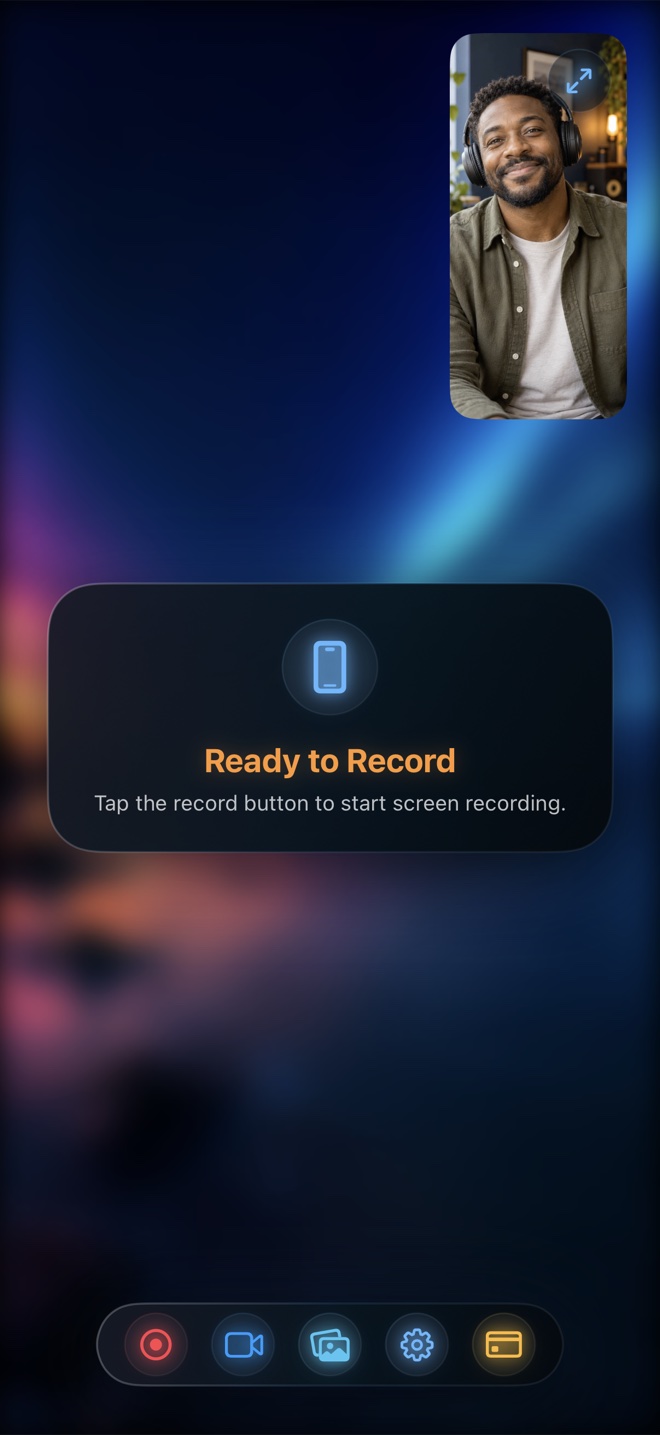
How to Record TikTok, Reels & YouTube Reaction Videos on iPhone (Live PiP Facecam)
Platform "Duet" and "Remix" tools lock your clip inside one social network with watermarks and rigid layouts. Recording your reaction directly into a clean 1080p MP4 on iPhone lets you post the exact same reaction to TikTok, Instagram Reels, and YouTube Shorts with zero watermarks and independent voice-over-video volume control.
Two ways to film a reaction on iPhone—and which one looks cleaner
Reel gives iOS creators two distinct reaction workflows depending on whether you have the source video saved in Photos or are scrolling live.
How to keep the clip’s audio from drowning out your commentary
The number-one mistake in one-take reaction videos is leaving source video volume at 100%, which buries every punchline or analysis you say while the clip plays.
Set App / Video Audio around 25–35% and Microphone at 90–100%, and wear earbuds (wired EarPods or AirPods) so the clip playing does not bleed out of your iPhone speaker back into the mic.
- Plug in earbuds or connect AirPods so clip audio stays isolated from your microphone.
- Open Reel, enable Lock Orientation (Portrait for 9:16 Shorts/Reels/TikToks), and set quality to 1080p.
- Either load your saved clip in Reel’s built-in iOS player with Camera in App, or choose Picture in Picture to react over another app.
- Pause, rewind, or scrub the clip live while speaking—everything records in real time into one finished MP4.
Why use earbuds when filming an iPhone reaction?
Without earbuds, sound from the iPhone speaker re-enters the microphone a fraction of a second later, creating a hollow slapback echo.
Can I blur my bedroom background inside the reaction camera?
Yes—Reel supports camera background blur as well as custom image or video backgrounds.