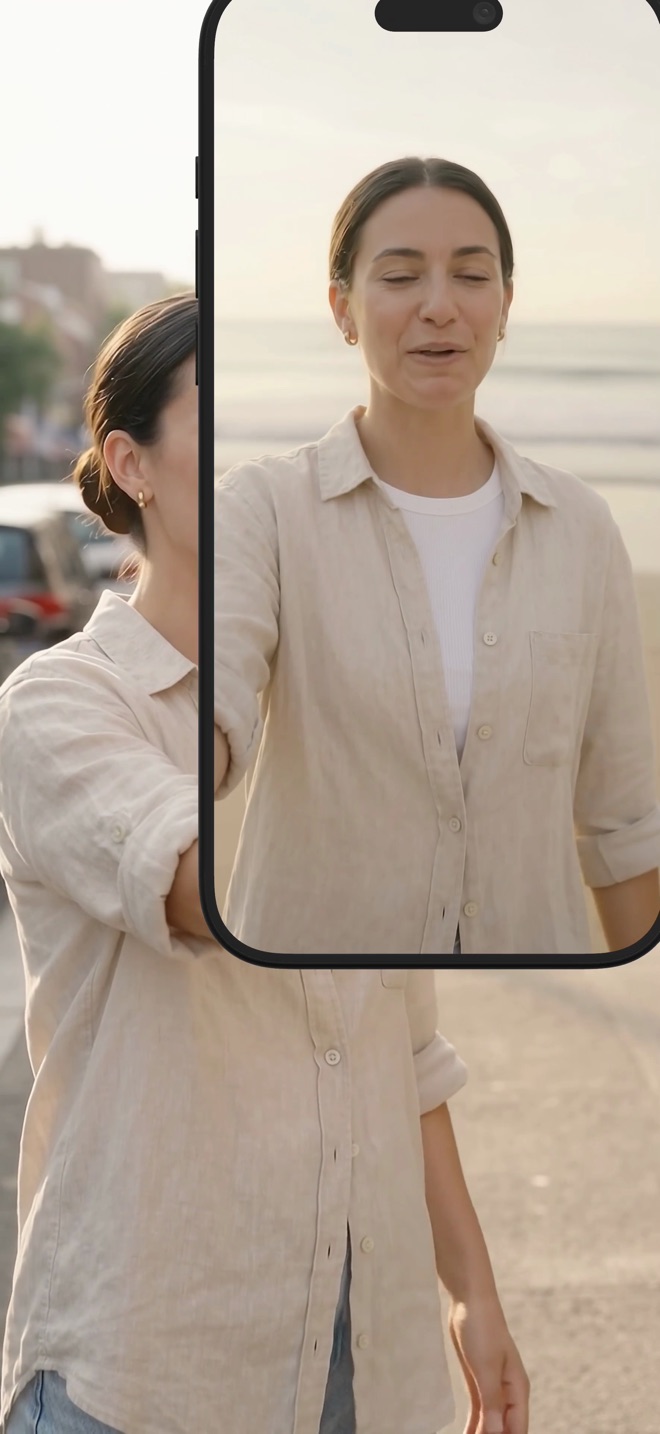
How to make a reaction video on iPhone with your camera
A reaction video is a video playing and a person responding to it, in the same frame, in sync. The hard part has always been the sync. Recording both at once removes it.
The usual way, and what goes wrong
People play the clip on one screen and film themselves on another, then stack the two in an editor. The audio drifts, the timing needs nudging, and the whole thing takes longer than the reaction itself. When it works it is fine; it rarely works first time.
Record it in one take
On iOS, Reel can play a video inside the app and record it together with your camera. That is the reaction mode.
- Save the clip you are reacting to in your photo library.
- In Reel, turn on Show Camera and choose Camera in App, so the preview sits inside Reel with the player.
- Open the clip in Reel's player. Position the camera overlay where you want it — a corner keeps the clip readable.
- Start recording, press play, react. Stop when it ends. One MP4, already in sync.
Sound
The clip's audio is app audio; your reaction is the microphone. Keep both on. If you will post to a platform that flags copyrighted audio, record with the two as separate tracks (turn off Record audio in single track in Settings → General → Recording Options) so you can lower the clip's sound in an editor without touching your voice.
Rights
Reacting is a well-established form, but the clip is still someone else's. Keep it to what you are actually commenting on, credit the source, and know the rules of the platform you post to. The app records; the judgement is yours.
Does this work on Mac?
The in-app player is iOS only. On a Mac, play the clip in any player on the display you are recording — Reel records a whole display, not a single window — with the camera on, and the clip's sound comes in as system audio.
Can I pause the clip mid-reaction?
Yes. The recording keeps going, so a pause is part of the take.