How Game Audio, Mic & Voice Chat Work When Screen Recording on iPhone & iPad
Solo gameplay with commentary works effortlessly on iPhone and iPad, right up until you join a Discord voice channel or turn on squad mic inside PUBG or COD Mobile—and suddenly the recording comes back silent. Here is why iOS behaves that way and how mobile gaming creators record full squad comms without buying a PC.
The single-device iOS VoIP rule
Whenever Discord, CallKit, or an in-game party voice chat activates bidirectional voice mode on the same iPhone you are recording, iOS switches AVAudioSession into protected communication mode and withholds audio from ReplayKit.
Turning in-game mic OFF immediately restores both game sound and your own ReplayKit commentary mic inside Reel.
How mobile creators record squad Discord comms + iPhone gameplay
If you want your friends’ Discord reactions audible alongside your iPhone gameplay and facecam, separate the Discord call onto a second device (your Mac or an old phone/iPad):
- Run the game + Reel (with PiP facecam and ReplayKit Mic ON) on your primary iPhone or iPad, keeping in-game voice chat OFF.
- Join Discord with your squad on a laptop or tablet next to you.
- Either play squad audio softly near your mic (for casual clips) or record the Discord track cleanly on Mac and drop it under your Reel MP4 if editing a highlight video.
Why did my game sound cut out the exact second I tapped the microphone icon inside the game?
Tapping the in-game party mic switched the game from media playback into VoIP voice-chat mode, which iOS blocks ReplayKit from recording.
Can I balance loud game gunfire against my own voice in Reel?
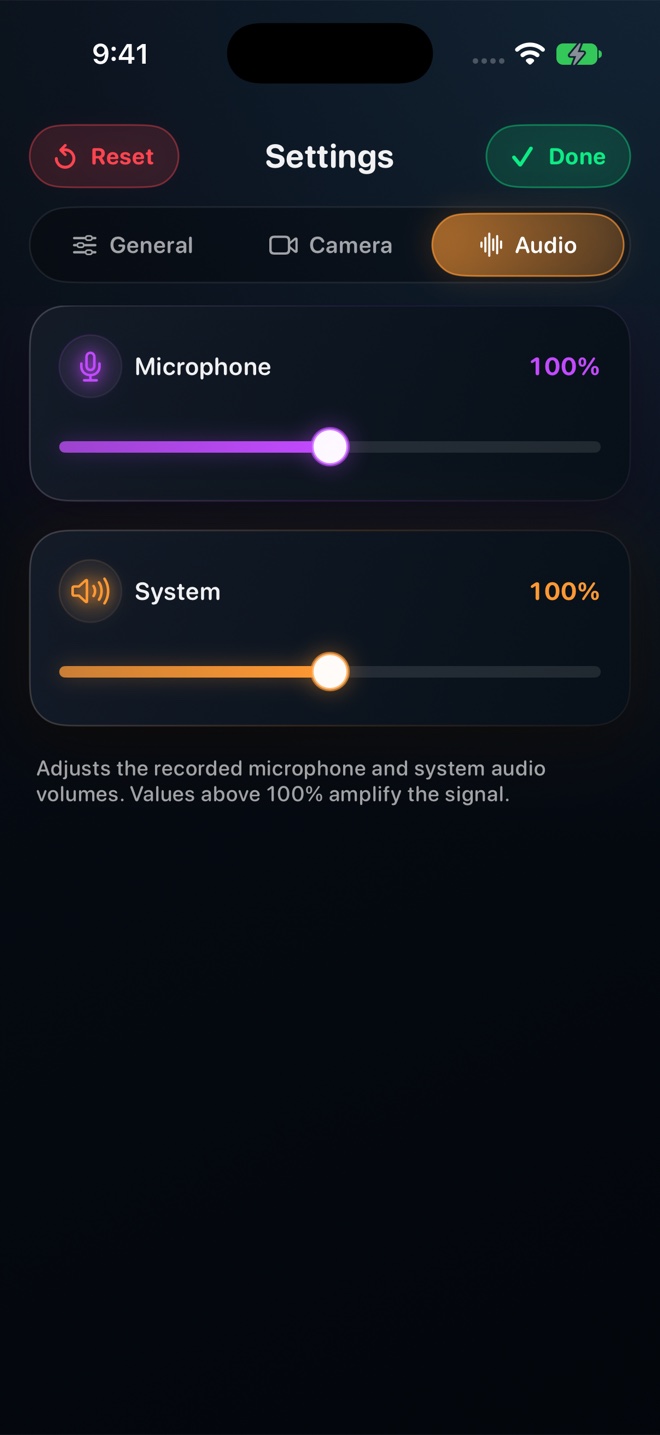
Yes—Reel provides independent sliders for App Audio and Microphone, plus optional separate audio tracks for editing.