Lightweight Mac Game Screen Recorder With Facecam & 60/120fps (No Heavy OBS Setup)
OBS Studio is unmatched when you are live-streaming to Twitch with six browser overlays, alerts, and scene transitions. When you simply want to press a shortcut, record a Mac game at 60 or 120 fps with your facecam in the corner and Mac game audio balanced under your mic, a lightweight native ScreenCaptureKit app gets you playing in ten seconds.
Why native ScreenCaptureKit + VideoToolbox keeps Apple Silicon FPS high
Modern M1–M4 Macs include dedicated hardware media engines for H.264 and HEVC encoding alongside ScreenCaptureKit’s zero-copy frame delivery. Reel taps both directly: your GPU stays focused on rendering the game while hardware encoders write the MP4 with negligible CPU load.
Recording full-screen or borderless Mac games cleanly
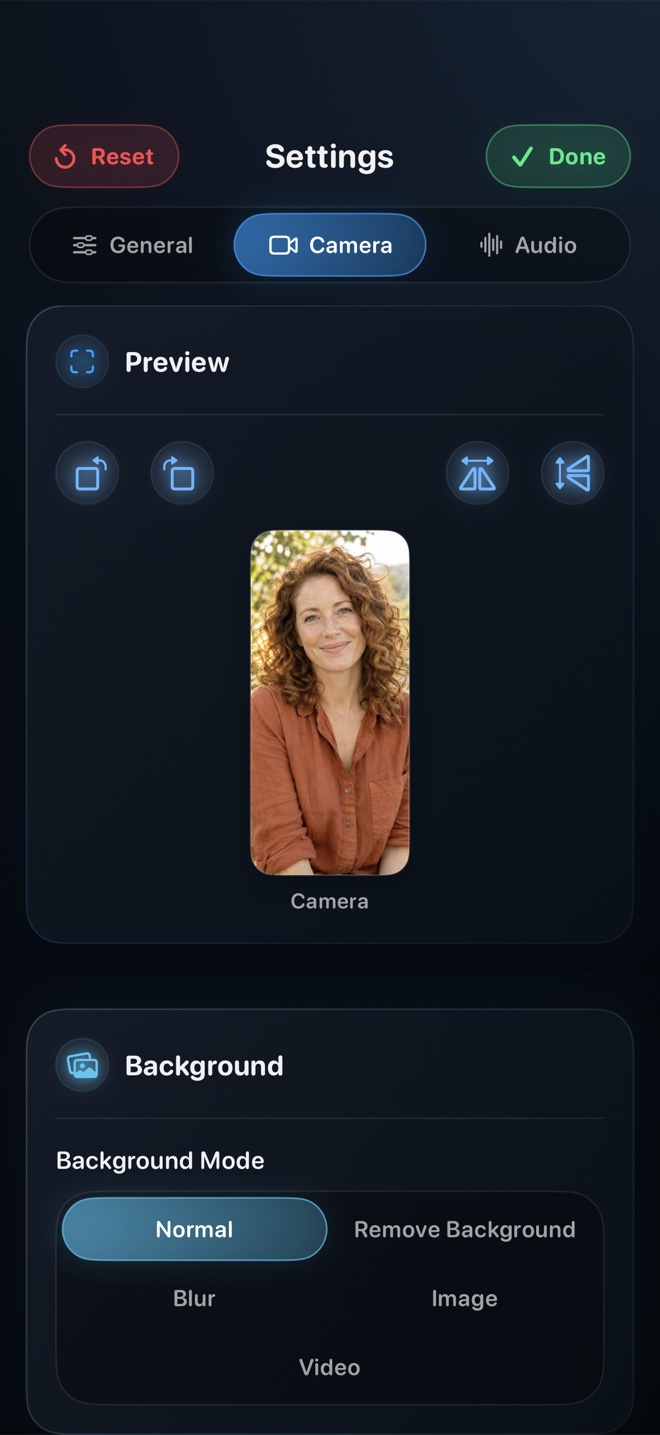
Set your game to Borderless Windowed or Full Screen on your target monitor, open Reel, pick 1080p (or Source Native in Pro) and 60 or 120 fps, turn off "Show this app in the recording" so Reel’s control panel stays hidden, position your camera overlay, and use Command-R to start and stop.
Should I pick 60fps or 120fps for YouTube gaming uploads?
60fps is the universal standard supported by YouTube, Twitch VODs, and social platforms; reserve 120fps for slow-motion replay breakdowns on ProMotion Macs.
Does the Mac version of Reel have ads on the free tier?
No—the macOS app has zero ads even on the free tier, and records up to 1080p for free.