How to Record Directly to MP4 on Mac (Or Convert Huge QuickTime .MOV Files Fast)
A five-minute Retina screen recording from macOS’s built-in Shift-Command-5 tool routinely balloons past 1.5 GB as a `.mov` file—which Windows colleagues, GitHub PR comments, Slack limits, and LMS portals often reject. You can either convert existing `.mov` files locally in seconds or skip `.mov` altogether by recording straight to `.mp4`.
Why renaming `.mov` to `.mp4` in Finder is risky
Some blogs tell you to simply rename the file extension in Finder. While QuickTime `.mov` and `.mp4` share ISO base media roots, macOS Retina captures often contain Apple-specific metadata atoms or HEVC profiles that break playback inside Chrome on Windows, Android browsers, or strict web uploaders when the container header is not properly muxed.
3 free ways to convert an existing QuickTime `.MOV` to `.MP4` on Mac
Never upload private work recordings to shady ad-riddled cloud converter sites when your Mac converts them locally 10x faster:
Better yet: Record straight to 1080p MP4 from the start
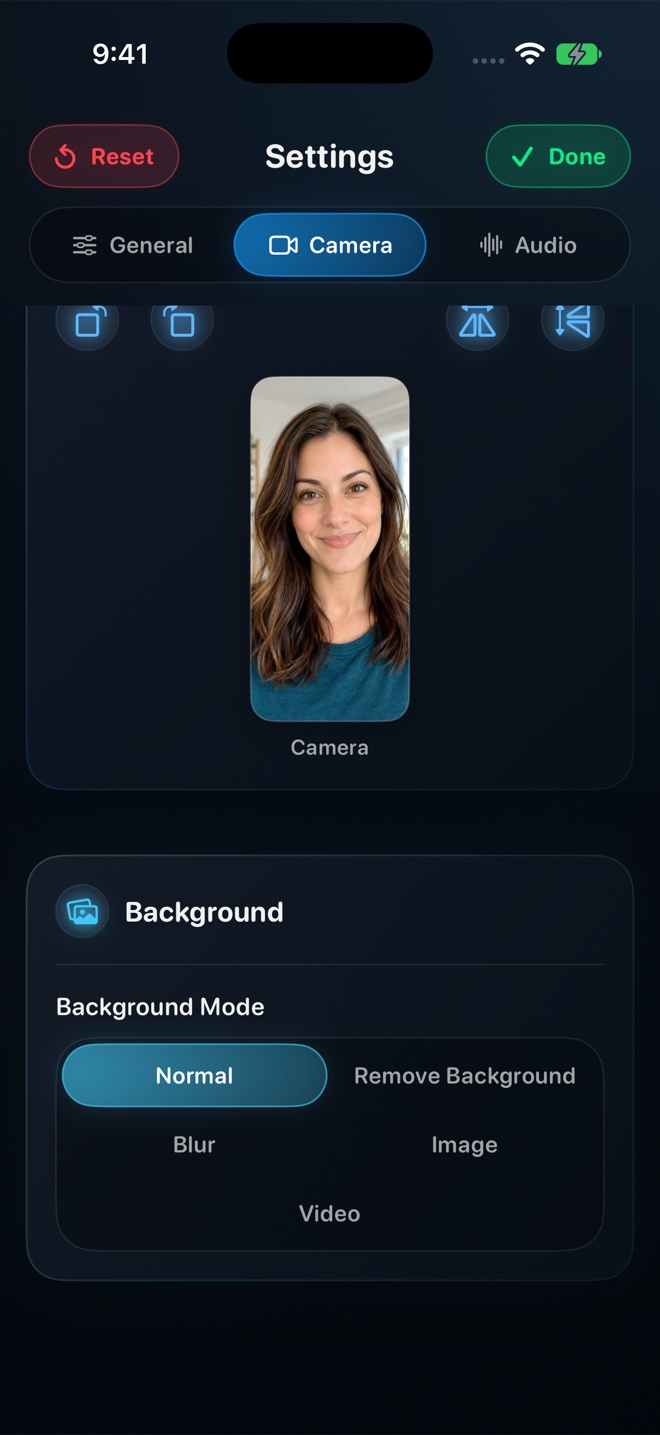
Converting after every single take gets old fast. Recording directly in Reel on Mac writes a universally compatible `.mp4` file at 480p, 720p, 1080p (free), or Source Native (Pro)—complete with your camera overlay and Mac system audio already mixed in.
Why is a 1080p MP4 from Reel 5x–8x smaller than a QuickTime Retina .MOV?
A 5K/4K Retina Mac writes four times as many pixels at conservative QuickTime bitrates; recording directly at 1080p MP4 keeps UI text sharp while staying email- and Slack-friendly.
Does converting MOV to MP4 delete audio?
No—standard AAC audio carries over cleanly into MP4.