How to Hide Notifications, Desktop Icons & Menu Bar Before Screen Recording on Mac
Nothing derails a crisp client walkthrough faster than a personal iMessage banner sliding into the top-right corner at minute four—or forty screenshot icons cluttering your wallpaper behind a window. Modern macOS has built-in toggles for every piece of visual clutter, with zero terminal commands needed.
The 4-switch clean-Mac checklist (takes 15 seconds)
Run down these four native macOS settings right before pressing Command-R:
- Silence banners: Option-click the Clock / Control Center in the top-right menu bar (or open Control Center → Focus → Do Not Disturb → For 1 hour) so zero Slack, Mail, or Messages banners appear.
- Hide Desktop icons without moving files: Open System Settings → Desktop & Dock → under Desktop & Stage Manager, toggle OFF "On Desktop" next to Show Items. Every file vanishes visually while staying untouched in ~/Desktop!
- Auto-hide the Dock & Menu Bar: Press Option-Command-D to hide the Dock instantly, or make your target app Full Screen (`Control-Command-F`) for a distraction-free canvas.
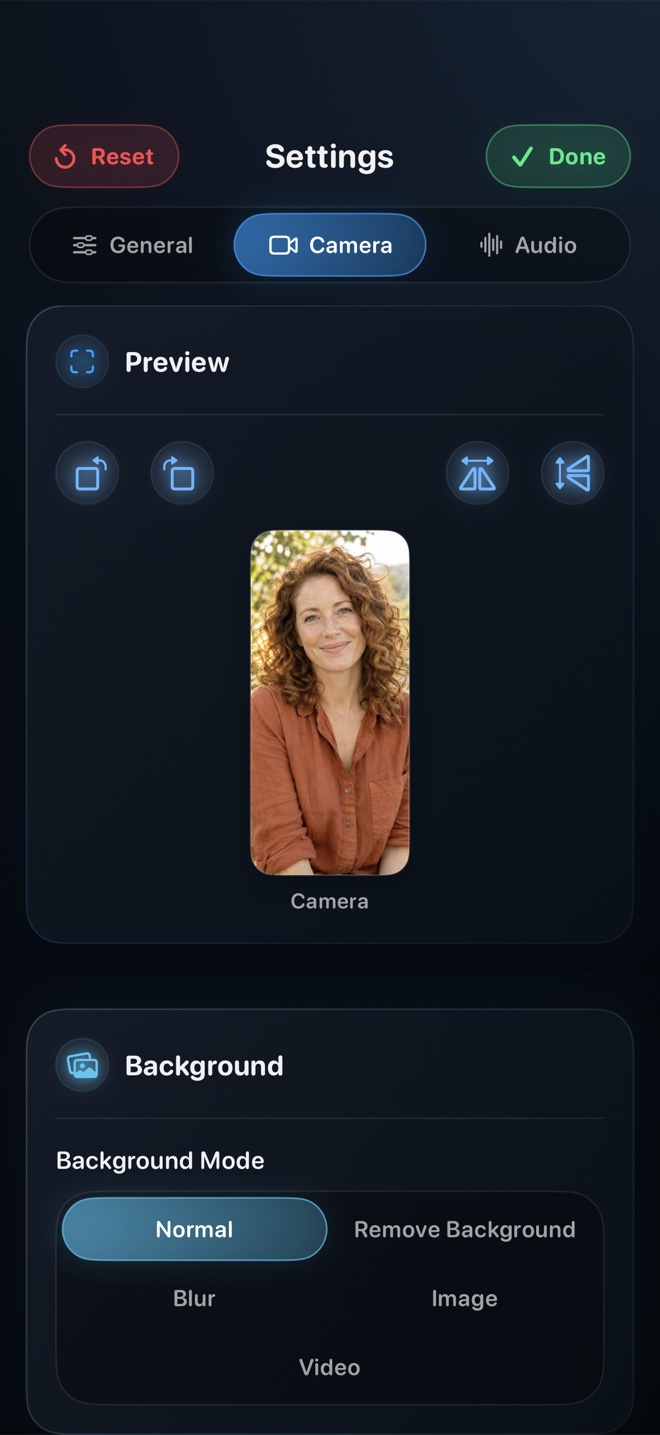
- Hide the recorder’s own UI: In Reel on Mac → Settings → General, turn OFF "Show this app in the recording" so Reel’s control window stays invisible even if it sits on the recorded display.
Bonus: Use a clean Safari / Chrome "Demo" Profile for browser tutorials
Create a dedicated browser profile named "Recording" with bookmarks bar hidden (`Shift-Command-B`), password autofill popups off, and zero personal extensions—so typing a URL in the address bar never autocompletes internal staging links or private history.
Does turning off "Show Items On Desktop" in macOS delete or move my Desktop files?
No—every file remains safely in your Desktop folder inside Finder; macOS simply stops drawing icons over your wallpaper.
Can Reel hide its own settings window while keeping my webcam visible?
Yes! Unchecking "Show this app in the recording" hides Reel’s control panel while still compositing your camera overlay into the MP4.