Give precise visual design feedback in a recording
Recorded design feedback goes wrong in a familiar way: the reviewer waves the cursor around and says “this feels off”. The designer then has to guess which element, which property and how much. A simple protocol fixes that.
One comment, four parts
Give every comment the same shape so the designer can turn it into a task.
- Element: point at it and name it, for example “the secondary button under the price”.
- Observation: what you see, such as “it has the same weight as the primary button”.
- Requested change: what you want, such as “make it a text link or an outline button”.
- Priority: must fix before release, should fix, or a suggestion.
Make the pointer and the screen easy to follow
Use the cursor as a deliberate pointer. On a Mac, Apple’s accessibility settings let you increase the pointer size and change its outline and fill colours under System Settings > Accessibility > Display. Move it to the element, then stop while you speak; constant motion makes the target ambiguous.
Some recorders can highlight clicks. Apple’s Screenshot toolbar has a Show Mouse Clicks option, and Loom documents a Highlight Mouse Clicks setting. These are features of those tools; check your own recorder rather than assuming it marks clicks.
Review mobile designs at their real size where you can. A layout checked only at a large zoom on a desktop monitor can hide spacing and type problems that are obvious on a phone. Opening a prototype on an iPhone and recording it there with Reel shows the designer that device’s view; other devices, settings and accounts may differ.
Keep the camera out of the way
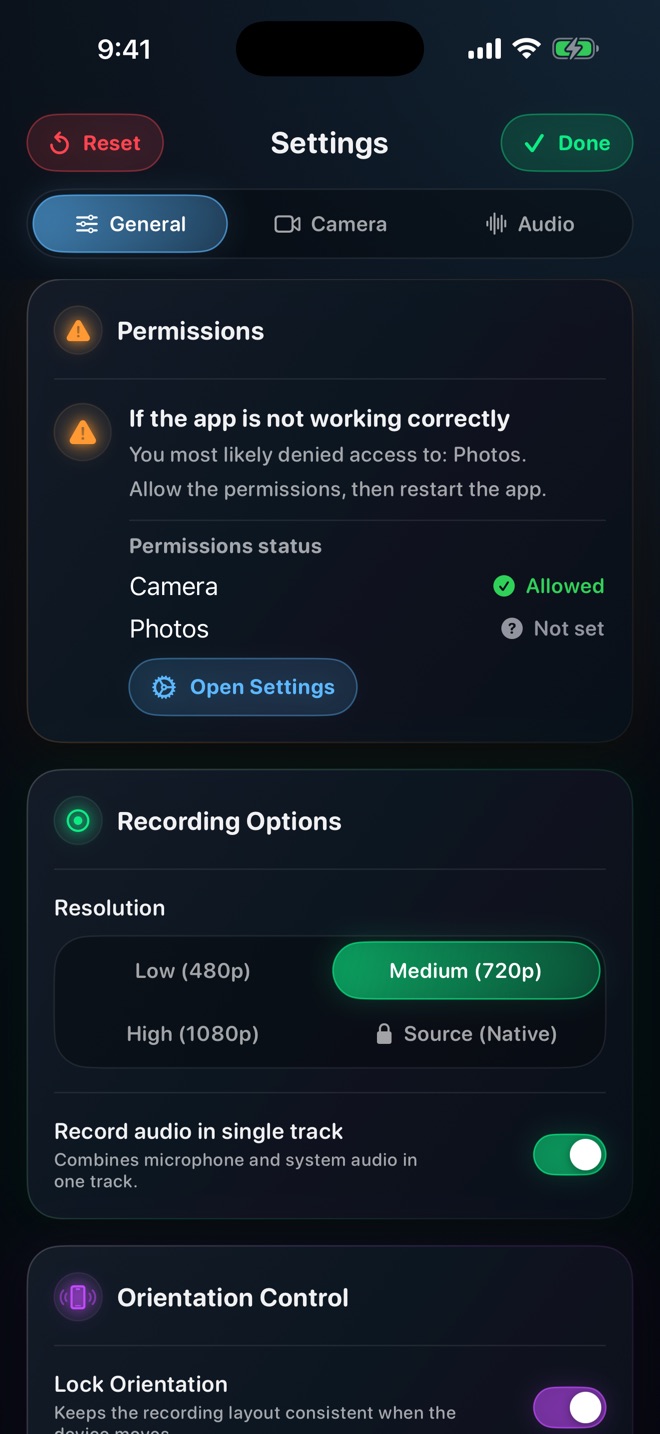
A small face overlay can soften critical feedback, but it also covers part of the design. With Reel, you can resize and move the camera overlay; place it over an area you are not discussing and check the first few seconds of a test recording before the full review. If you need to talk about the corner it covers, move it or turn the camera off for that part.
Worked example: a checkout screen review
After recording, write the same numbered comments in the message that accompanies the video, each with a timestamp. The designer can tick them off without rewatching, and a later reviewer can find the reasoning quickly.
- Say the file name, page name and version or date of the design at the start.
- Comment 1 — Must fix: “The total price, top right, is smaller than the shipping line below it. Make the total the largest number on the screen.”
- Comment 2 — Should fix: “The error message under the card field is grey on light grey. Increase its contrast; it is hard to read on my phone.”
- Comment 3 — Suggestion: “Consider moving the promo code field below the total so it does not interrupt payment.”
- Close by repeating the must-fix items in one sentence.
Limits of recorded feedback
Recording is one-way. If a comment depends on a product decision the designer does not know about, the video will not resolve it; flag it as a question rather than a change. And colour comments made from a recording are only as reliable as the screens involved, so describe colour problems in terms the designer can check in their file, such as contrast or a named colour token.
Should I record the whole review in one take?
For a single screen, yes. For several screens, short separate clips with matching written notes are easier to work through.
Does a camera overlay help?
It can make tone clearer. Keep it small and away from the area you are discussing.