Make a customer onboarding walkthrough for one task
An onboarding video should get a new customer from nothing to one finished outcome. The usual mistake is recording from your own long-used account, which shows menus, data and permissions a new customer will never see.
Pick one outcome
Name the task in a sentence the customer would use: “Invite your first teammate”, not “Team management overview”. If you find yourself saying “and you can also…”, that is a separate video. A short set of single-task videos is easier to maintain than one long tour, because when one screen changes you re-record one clip.
Use a fresh sample account
Create a new account on the plan most new customers start with, with the role they will have. Admin accounts often show extra menus, and accounts with history show data that changes the layout. Populate it only with invented names and content.
If the product runs in a browser, a new browser profile or a private window keeps your own saved sessions out of view. Apple’s Safari guide notes that Private Browsing does not save the pages you visit or changes to cookies and website data; check before recording that the sign-in screen looks like a first visit.
Structure the walkthrough
- Opening: what the customer will have done by the end, and what they need first, such as an admin role or a teammate’s email address.
- Starting point: show the screen the customer sees right after signing in.
- Steps: perform each action and name the button by its label and location.
- Checkpoint: after any step that can go wrong, say what should be on screen now.
- End state: pause on the result, for example the teammate listed as Pending.
- Next step: one sentence pointing to the next task.
Recording choices
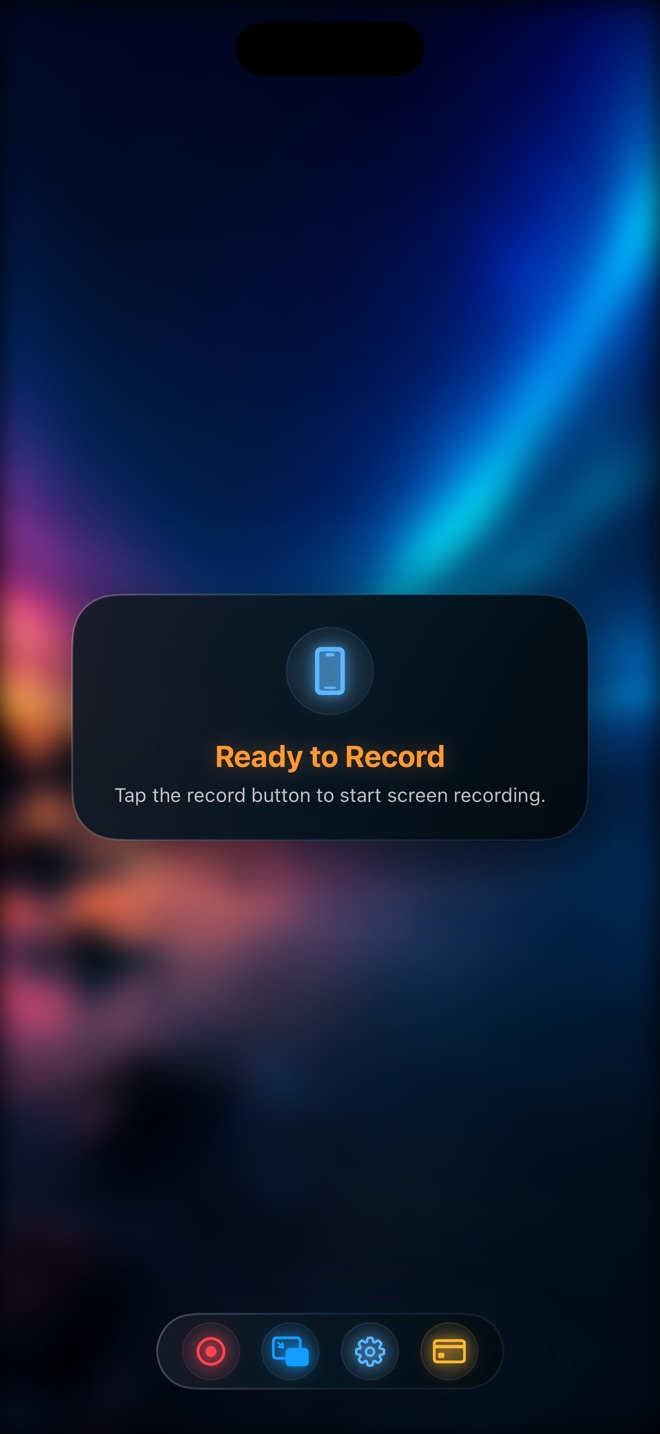
Record on the device customers mainly use. If most of them use your iPhone app, record the iPhone app; a Mac screen with a phone-sized window is not the same thing. Reel records the iPhone or iPad screen with your voice, and can add a camera overlay. A face during the opening and closing can make the video feel personal; during dense steps, a smaller overlay or none keeps attention on the interface.
Reel’s background blur or replacement applies to the camera image only. It does not change anything on the recorded screen, so the sample account is still what protects real data.
Worked example: “Invite your first teammate”
Illustrative workflow: “By the end, you will have created a teammate invitation. This example requires the workspace owner role.” Open Settings, choose Team, select Invite, enter a sample address, choose Member and send. Pause on Pending and explain that this confirms the request in this example, not inbox delivery. Show where the product lets an owner check or resend an invitation. Use the actual labels and role requirements of your product, and verify acceptance separately before saying the teammate has joined.
Keep it accurate after release
Note the app version in the video description and review the clip whenever that part of the interface changes. Add captions and a short written version of the steps; W3C’s guidance on prerecorded captions explains what captions should include, and a text version helps customers who search rather than watch.
Can I record from my own account and blur the data later?
You can, but every frame must be checked, and your account may show menus a new customer does not have. A fresh sample account is simpler and more accurate.
How long should an onboarding video be?
As long as one task takes to show clearly. If it covers several tasks, split it.