Record a reproducible software bug
A bug video is useful when someone else can follow it and see the same failure. That means the recording has to start before the problem, not at it, and has to show the details a developer would otherwise ask you for.
What a reproducible report contains
Apple’s bug reporting guidance for Feedback Assistant is a good model for any software, not only Apple’s. It asks for a title that names the problem, platform and version; numbered steps to reproduce; the actual result; and the expected result. It also recommends one issue per report and lists screen recordings as especially valuable for interface problems.
The recording supports the written report; it does not replace it. A developer needs to copy your steps into a test, and written steps are easier to reuse than extracting them from a video.
Prepare before you record
Apple’s guidance also suggests noting influencing conditions, such as whether you are signed in to iCloud or have accessibility settings turned on. Write those down too.
- Note the system version: on iPhone or iPad, go to Settings > General > About; on a Mac, choose Apple menu > About This Mac.
- Note the app’s version from its About or Settings screen.
- Replace personal data with test data: a test account, sample files, a dummy address.
- Reproduce the bug once without recording, so you know the exact sequence.
- Use a Focus to reduce interruptions, review its allowed notifications, and check the final recording for banners.
- Return the app to the starting state the steps begin from.
Record the sequence
Record the app version separately if opening About changes the starting state. Begin the reproduction from the exact state named in the written steps. Perform the steps at a normal pace, saying each one aloud as you do it. When the bug appears, stop moving for two or three seconds so the failure is clearly visible, then say what you expected instead.
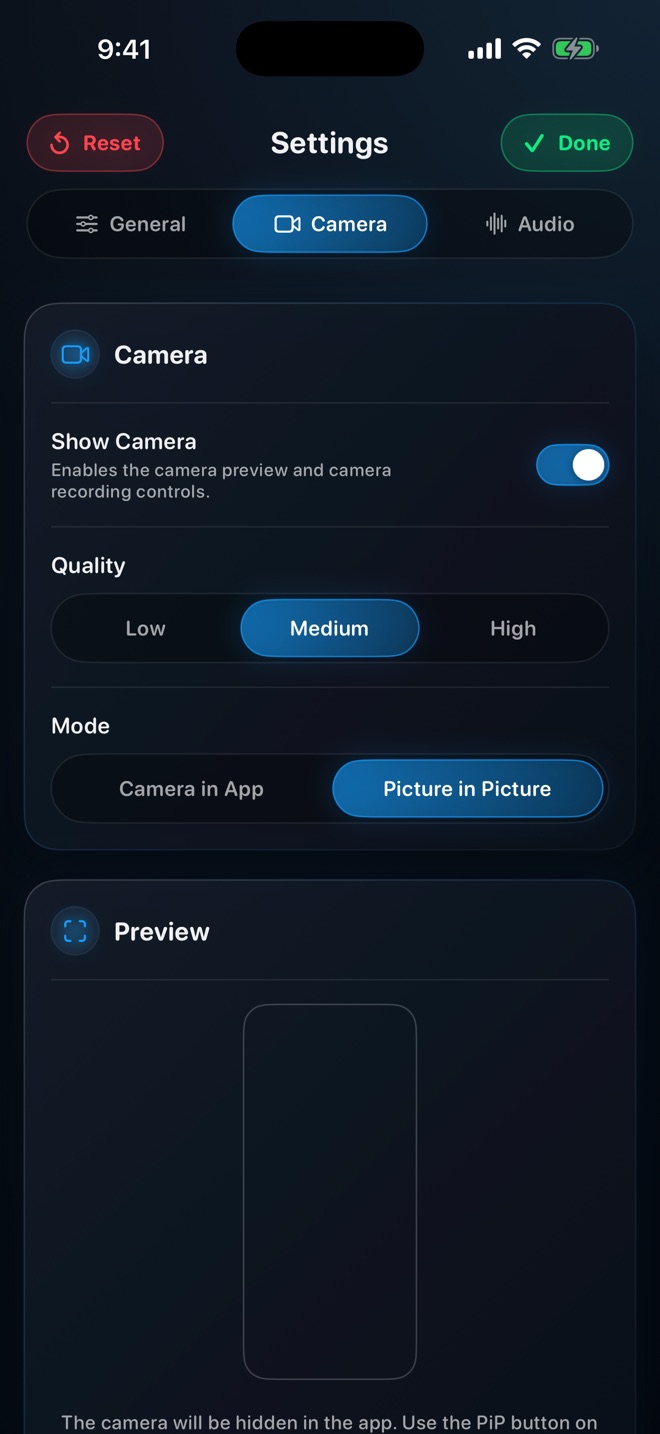
With Reel on iPhone or iPad, microphone narration is useful; a camera overlay usually is not, because it can cover part of the interface the developer needs to see. On a Mac, Reel records the whole display, so close windows unrelated to the bug before starting.
Worked example
Illustrative report, not a measured test: Title: “Export button stays disabled after renaming a project — ExampleApp 4.2, iOS 26.1.” Steps: 1. Create a project named Test. 2. Rename it to Test 2 from the project menu. 3. Open Export. Actual: the Export button is grey and cannot be tapped. Expected: the Export button is enabled, as it is before renaming. Frequency: 5 of 5 attempts; does not occur without renaming.
The video includes the version, then the three steps and a pause on the disabled button. Replace the illustrative frequency with your actual observed attempts and conditions; do not report five attempts unless you made five.
When recording is not possible or not enough
Apple notes that some apps might not allow their audio or video to be recorded. If a protected screen goes black in the recording, describe it in writing rather than trying to work around the protection. For crashes and performance problems, a video rarely explains the cause; the developer may need logs or a diagnostic report through their own support channel.
Before attaching the file, watch it once more for anything private you missed, such as a notification banner or an email address in a menu.
Should I record several bugs in one video?
No. Apple recommends one issue per report, and the same applies to the video. Separate files are easier to triage and assign.
How long should a bug recording be?
Long enough to show the starting state, the steps and the failure. If it takes many minutes to reach the bug, say so in the report and include timestamps.