How to Remove Audio or Mute a Screen Recording on iPhone & Mac (Before or After)
Accidentally left your mic hot while someone spoke in the kitchen, or captured loud notification dings on an otherwise silent UI clip? You can strip the audio track from an existing video in three clicks—or mute either source independently while recording.
3 instant ways to mute an already-recorded video
Pick whichever matches your device:
- On iPhone & iPad (Photos app): Open the video → tap Edit → tap the yellow Speaker icon in the top-left corner so a slash appears → tap Done. Zero re-encoding blur.
- On Mac (QuickTime Player): Open the video → choose Edit → **Remove Audio** → File → Save.
- In any browser (zero upload): Drop the clip into our free local tool at `/tools/remove-audio-from-video/` to export a silent MP4 locally.
Mute only Mic OR only App Audio mid-recording in Reel
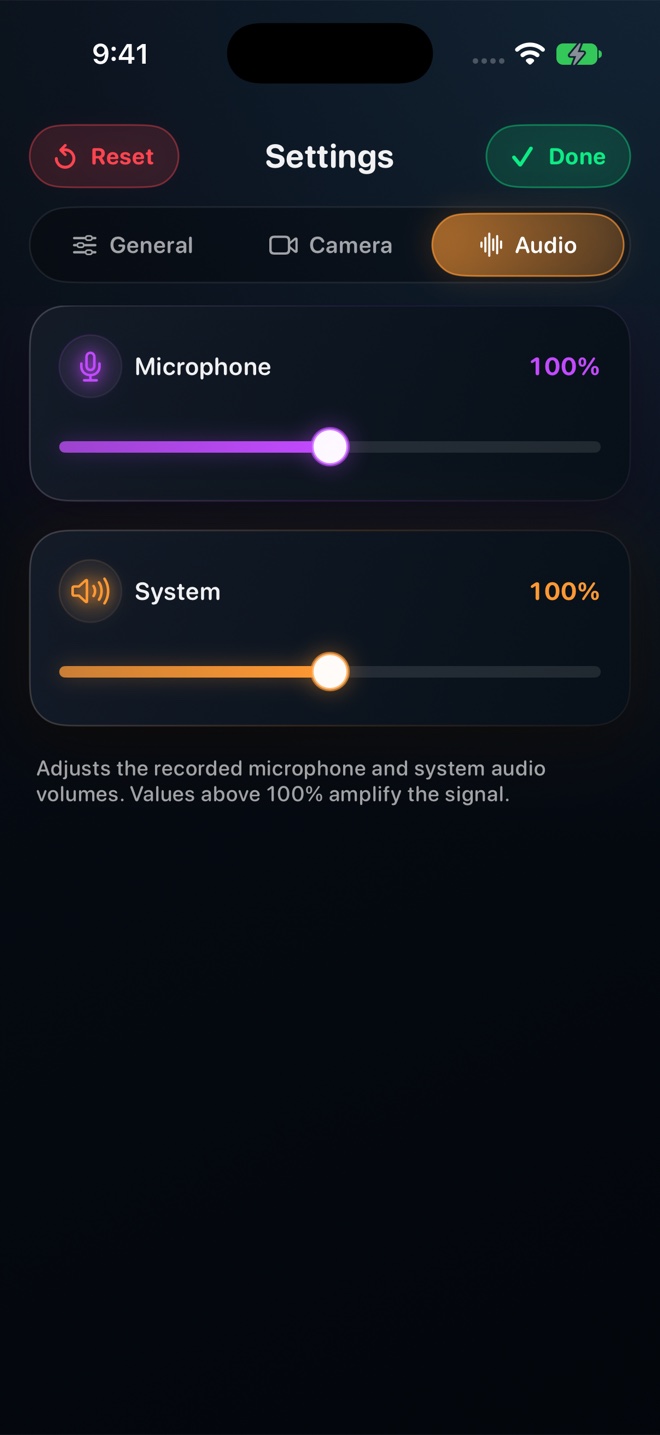
Photos and QuickTime mute *everything* at once. In Reel, Microphone and System/App Audio have separate mute switches and sliders—so you can mute your mic to cough while keeping app sound running, or record silent UI with clean voiceover.
If I tap the mute speaker icon in iOS Photos and share via AirDrop or WhatsApp, can the recipient unmute it?
iOS exports a muted copy when sharing to third-party apps; if AirDropping "All Photos Data", export via Save to Files first so the audio track is permanently stripped.