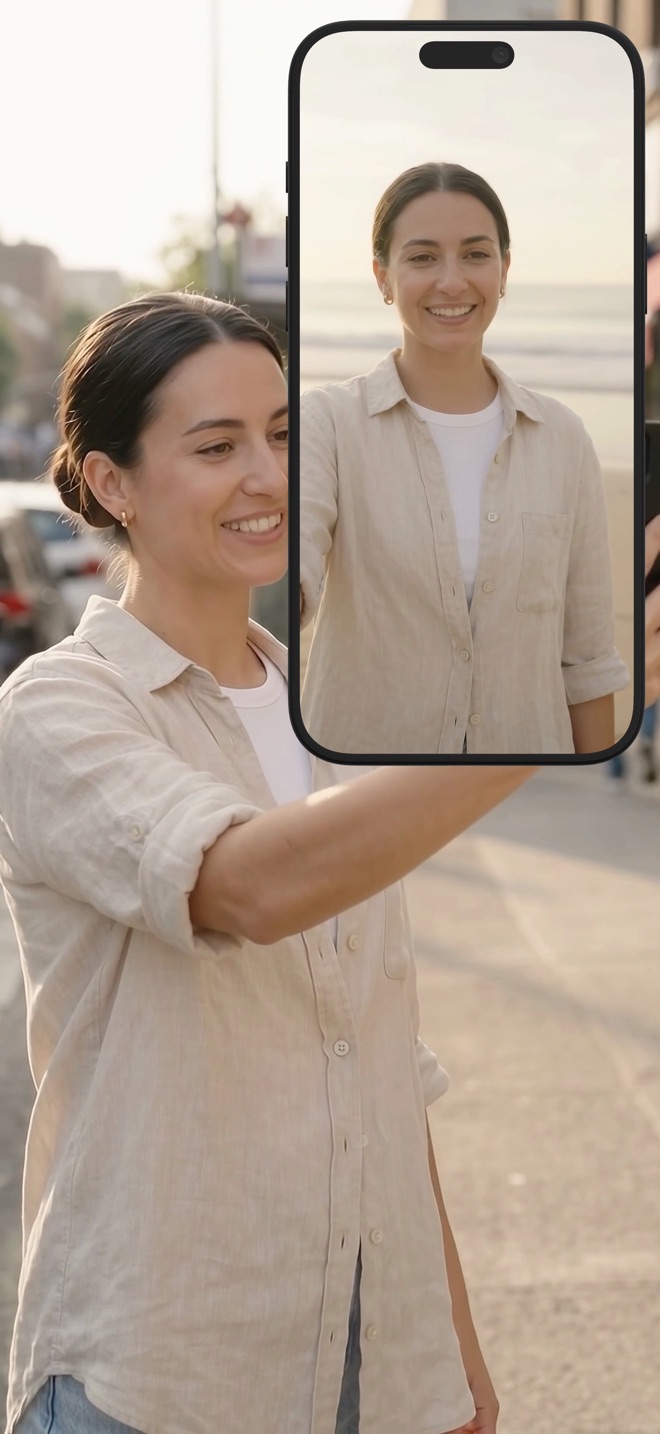
Camera blur, replacement background or decorative frame?
A softened room, a replacement image and a frame around a video solve different problems. Name the result you need before choosing an effect. Then record movement: a still camera preview can hide edge problems that become distracting when you turn your head or lift a hand.
Separate the subject from the surrounding canvas
Person segmentation attempts to distinguish the presenter from the room. Blur softens the background; an image or video can replace it. A decorative frame or canvas surrounds the picture without necessarily removing anything inside it.
For a home-office demonstration, decide whether the aim is an unobtrusive room, a branded backdrop or a cut-out presenter. Do not select a room blur and assume it redacts a customer name in the screen demonstration. That needs a separate content review.
Check the current Reel mode
Inspected Reel settings support person-based background effects including blur, image and video. Transparent Remove Background is not offered in Picture in Picture, although that does not exclude every other background effect in PiP. Check the actual controls on the installed build.
Camera in App and system PiP also differ in where the camera remains visible. Choose the mode for the recording task first, then choose its available effect. This source inspection is not proof that every device, lighting condition or third-party app behaves identically.
Use a movement test that challenges the edge
With a harmless background, record looking left and right, lifting one hand and moving a pen near your shoulder. Include hair, glasses and an area where the background has a similar colour to your clothing.
Play the saved sample at normal size. Look for disappearing fingers, a flickering outline and patches of the room. Change lighting or position before increasing the effect strength. If a reliable cut-out is not possible, a simpler background or no effect may be the clearer choice.
Check the replacement as part of the lesson
Use an image you have permission to publish and preview both portrait and landscape framing where needed. A face that fits one crop can appear too close to an edge after rotation. Avoid putting small essential text inside a backdrop that viewers cannot reliably read.
For a video background, check motion behind the presenter during spoken instructions. If it draws attention away from the demonstrated control, use a still image instead. The goal is a readable explanation, not the largest number of animated elements.
Review the exported picture, not only the live preview
Watch the file through the delivery route. Confirm the background is present, the camera does not cover the action and the subject edge remains acceptable after processing. Keep a neutral test when changing camera mode or lighting.
Do not describe a successful effect as a privacy guarantee. Reflections, audio, screens and the background itself can disclose information. Check the whole recording and audience before sharing it.
Can I use transparent Remove Background in PiP?
The inspected Reel settings do not offer that transparent mode in PiP. Check the available blur, image or video choices on the current build.
Does camera blur hide text on my screen?
No. It changes the area behind the presenter, not the recorded app interface.