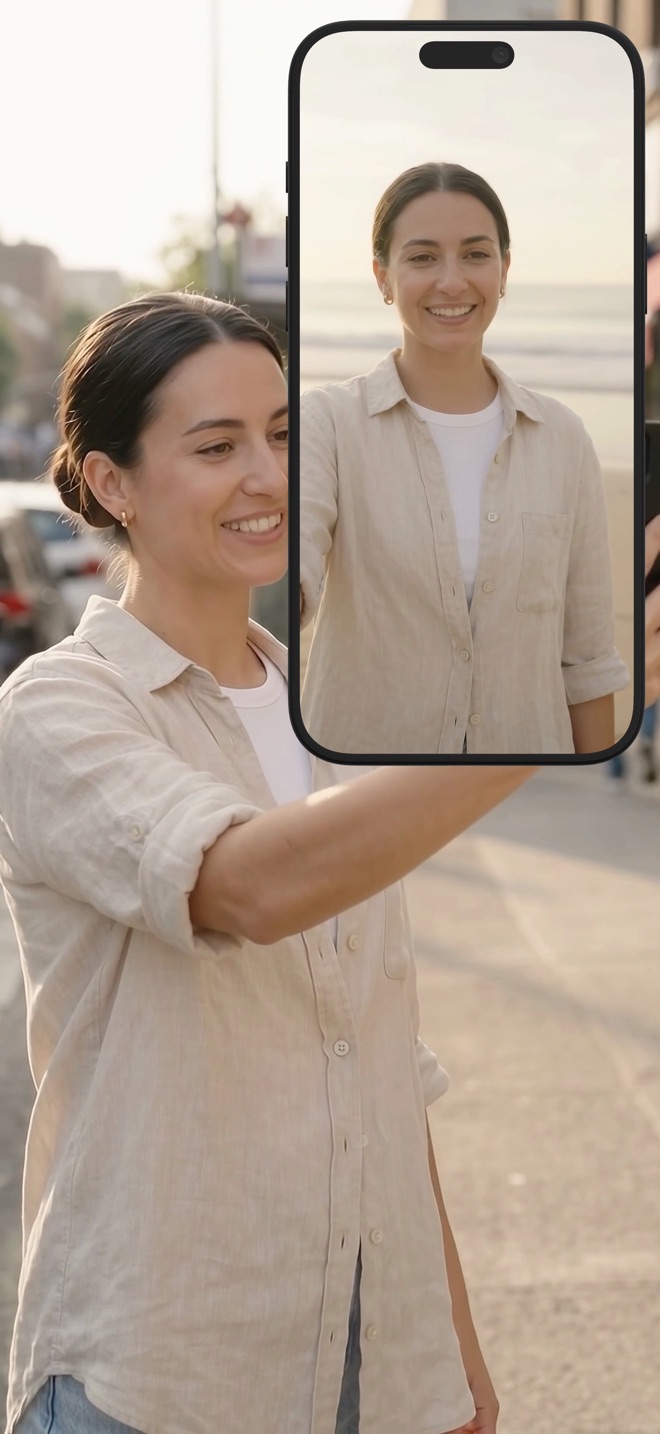
Light a presenter inset without obscuring the screen
For a small presenter inset, a clear face matters more than a complicated studio. Start with the direction of light and the saved picture before buying equipment or relying on an enhancement effect.
Start with the light in front of you
Apple’s camera guidance recommends front lighting rather than a bright source behind the presenter. A window behind the camera can be a useful starting point. A window directly behind your head may leave your face dark even when the room looks bright.
Move yourself or the light before changing several software controls. Clean the lens with an appropriate soft cloth and remove an accidental cover. These simple checks isolate an ordinary image problem without assuming the recorder is processing the camera incorrectly.
Compare two arrangements, not ten settings
Record the same short introduction in two positions: the current arrangement and one with softer light in front and slightly to the side. Keep the camera distance, inset size and screen content similar. Compare the saved clips at the intended presentation size.
Look for readable eyes, visible facial detail and distracting reflections in glasses. A very bright lamp can create glare or make the presenter uncomfortable. If the screen is the main light source, switching between a white document and a dark app may change the apparent lighting during the lesson.
- Choose a repeatable sentence and camera position.
- Record the existing setup as a reference.
- Move the light or seating position and record again.
- Compare the face while the demonstration switches between light and dark screens.
Leave room for the actual tutorial
Once the face is clear, reduce the inset to a size that does not cover the task. A larger presenter is not always more useful: a tutorial about a small settings panel needs the controls visible. Check the camera boundary against menus that open later, not just the first screen.
Background removal or replacement can help presentation, but it is not a substitute for a usable source image. Inspect hair, hands and chair edges in motion if you use an effect. A still preview can look convincing while movement exposes distracting edges.
Keep effects and recording claims separate
Apple offers video effects on supported Macs, with version and hardware requirements. Their availability in a particular camera session should be checked rather than assumed for every Reel recording. This workflow does not depend on an automatic relighting or AI enhancement feature.
Play the exported result with normal screen brightness and verify that the inset stays clear without dominating the interface. Repeat the short check if the room or time of day changes significantly. Arte Soft publishes Reel; these are practical comparison steps, not a claim that we tested your lighting or device.
Do I need a ring light?
Not necessarily. First compare a front-lit position with your current setup. A useful result may come from moving a window or lamp relative to the camera.
Should I brighten the entire recording to fix my face?
That can wash out the screen interface. Improve the camera source or adjust an independent camera layer where your editor supports it.