Prepare an iPad tutorial with a readable camera layout
An iPad tutorial needs its own layout rehearsal. The keyboard, sidebar, multitasking arrangement and hand interaction can occupy areas that looked empty on an iPhone. Set up the real lesson on the iPad and confirm that the camera remains visible without covering its important controls.
Choose the iPad task and viewing context
Decide whether the demonstration is a drawing, a document edit or a navigation task. Open a safe sample with the sidebars and tool panels the lesson actually needs. If viewers will watch on phones, consider showing one panel at a time instead of shrinking a whole desktop-like workspace.
Select the orientation you intend to keep and rehearse a keyboard appearance, a file picker and the final result. Those moments often consume more space than the opening screen. Do not choose camera placement solely from a clean home screen.
Choose the camera mode for the target app
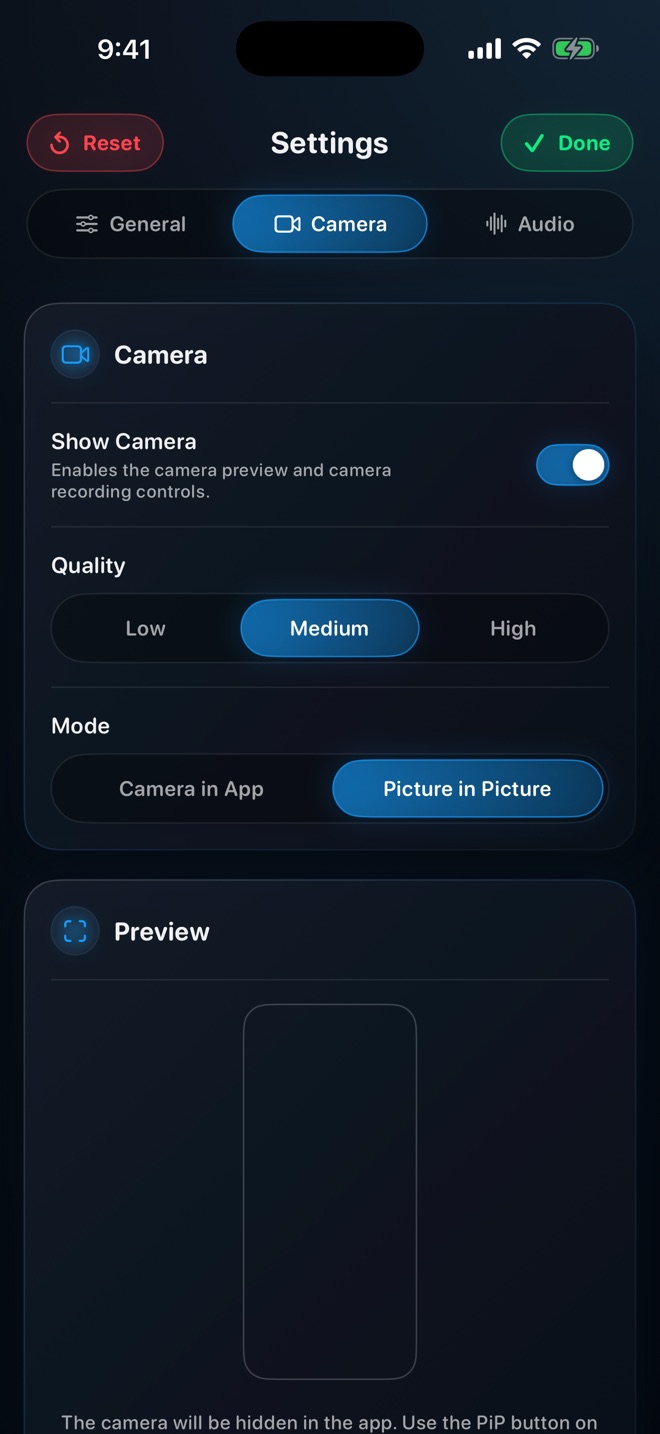
Reel’s camera mode inside its own interface differs from system Picture in Picture used while demonstrating another app. The existing PiP guide describes the current workflow; verify camera access and the floating view on this iPad before a long take.
An external monitor or a multitasking change is a separate test. This article does not promise that camera placement or capture follows every external-display configuration. Keep the first rehearsal on the exact screen and app arrangement intended for the lesson.
Build an obstruction check
Place the camera where it does not cover the active toolbar. Then open the keyboard, switch the relevant sidebar and perform a long press if that is part of the task. Move the bubble only with controls available in the chosen mode.
For an illustrative sketch lesson, show selecting a brush, drawing a line and changing its colour. Confirm that the camera does not hide the brush-size slider or colour confirmation. A face in the corner is useful only if the viewer can still repeat the drawing steps.
Test interaction and narration together
Make a short recording with the actual pen, touch or keyboard input. Speak while doing the most complex action, then listen to the saved sample. Do not assume that a microphone accessory or camera permission also proves narration was captured.
Watch for hands or the device case covering the physical camera or microphone. Check the captured picture itself for labels, orientation and delays. If the layout changes during the task, decide whether to split it into separate takes.
Review the destination copy
Send a harmless sample through the intended delivery route and view it at the audience’s size. Confirm the lesson remains readable and the face camera is neither missing nor covering a key step.
Preserve a repeatable starting state and note the iPad/app versions. A successful rehearsal establishes this arrangement, not universal support across all iPads, stages, monitors or protected apps. Recheck after changing the interface or capture setup.
Can I reuse my iPhone tutorial layout unchanged?
Rehearse it on iPad. Sidebars, keyboard size and interface arrangement can change what is visible.
Does this prove capture on every external display?
No. Test that exact arrangement separately and follow the current device and app documentation.