How to Screen Record Discord Streams & Channels on Mac & iPhone With Audio
Discord has no native "Record Channel Video" button, so saving a squad gaming moment, a coding study group, or a community product demo requires a screen recorder. Because macOS and iOS treat Discord voice channels very differently, picking the right platform avoids silent clips.
On Mac: Full Discord voice + stream audio via ScreenCaptureKit
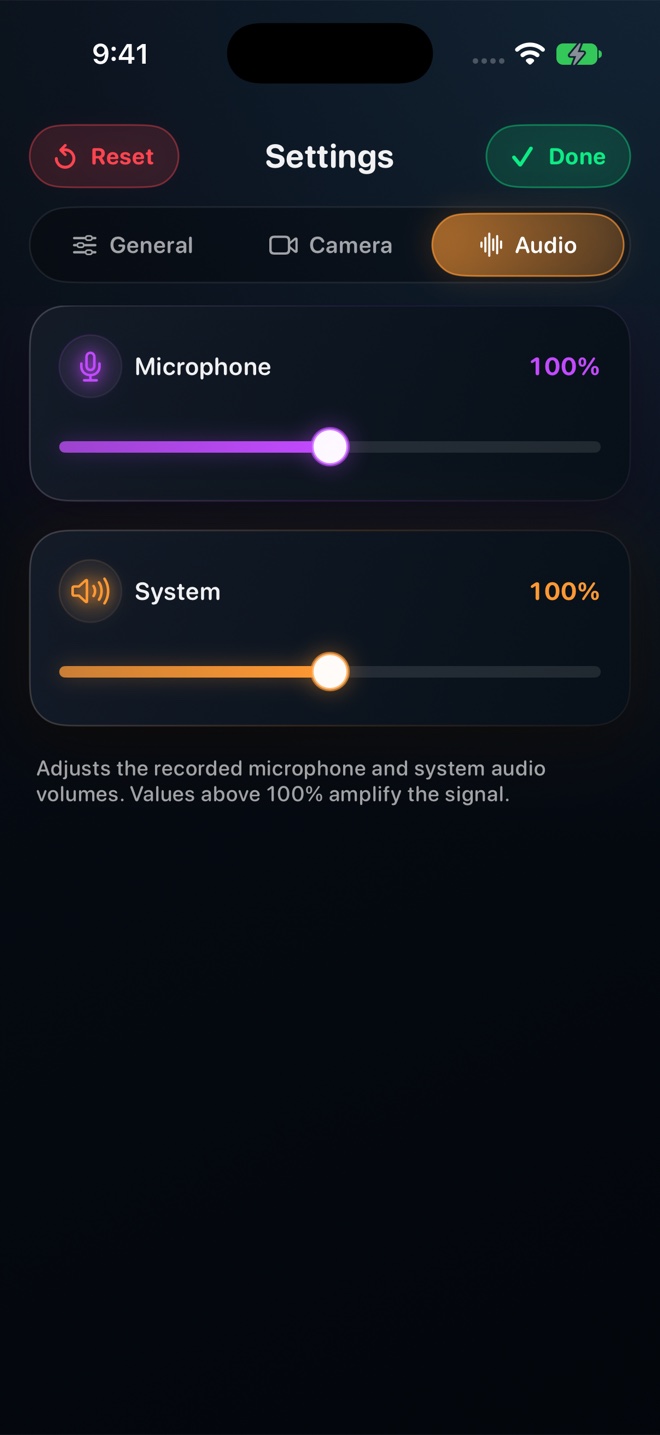
After getting consent from everyone in the channel, open Discord on Mac (desktop app or browser) and wear headphones. Open Reel, leave both System Audio (which captures everyone speaking in Discord plus any shared game stream) and Microphone (which captures your own voice) turned on, and press Command-R.
Why Discord voice channels mute ReplayKit on iPhone—and the fix
When you join a live Discord voice channel on iPhone, Discord activates iOS’s VoIP CallKit/communication audio session, which causes iOS to mute ReplayKit audio. If you only view a text channel or watch a clip without joining voice chat on iOS, audio records normally; for active Discord voice channels, always record from your Mac.
How do I compress a Discord recording under Discord’s 10 MB free upload limit?
Record at 720p in Reel for short clips, or run the saved MP4 through our free local browser compressor at /tools/compress-video-for-discord/.
Does Discord notify a server when you record your Mac screen?
Discord does not show a screen-recording alert on macOS, though you should always obtain participant consent before recording any voice or video call.