Choose OBS scenes or a simpler Mac recording workflow
Choose the recording workflow by writing the layouts your session must switch between. OBS scenes are useful when those layouts combine different sources; a single-layout demonstration may need less setup.
What OBS asks of you
OBS’s quick start guide covers its Auto-Configuration Wizard, adding sources to scenes and testing the result. Its general audio-default description is not a guarantee for every Mac configuration: explicitly select the supported screen and audio sources for your OBS and macOS versions, watch the meters and listen to a saved test.
That flexibility means you are the one who designs the layout, chooses the audio sources and confirms they work. When something changes, such as a new microphone or a macOS update, you check the setup again.
What the simpler routes offer
macOS has a recorder built in. Apple’s guide describes the Screenshot toolbar (Shift-Command-5) with options to record the entire screen, a selected portion, or a selected window on recent macOS versions, choose a microphone, show mouse clicks, set a timer and choose a save location. Apple says the option to include system audio requires a newer macOS release, and that some apps, such as the Apple TV app, might not let you record their windows.
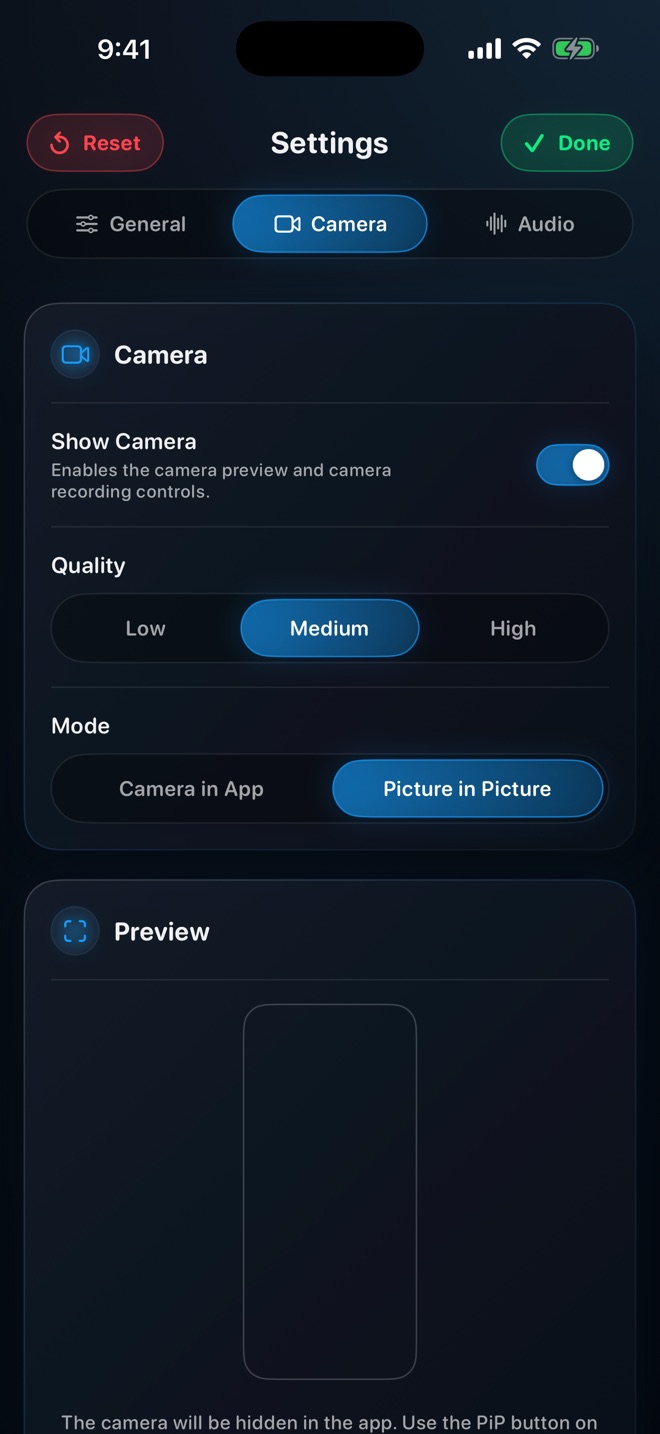
Reel’s Mac workflow uses display capture with camera options. A floating camera can be composited into the saved video; a separate popout camera window follows a different capture path. Check the saved result for the mode and display you use, rather than assuming that every camera visible anywhere on the desktop appears in the file.
Choose OBS when
- You switch between layouts during one recording, such as full-screen camera, then screen with camera, then slides.
- You combine several sources, such as two displays, a capture card and overlays.
- You also stream, and want the same setup for both.
- You are comfortable maintaining the setup and testing it before each session.
Choose a simpler recorder when
- One screen and one voice, with or without a camera, is the whole video.
- You record often and quickly, and setup time matters more than layout options.
- Other people on your team will record and need fewer settings to get wrong.
Worked example: two people, two answers
A teacher records ten-minute lessons twice a week: slides on the Mac display, voice, and their face in a corner. The layout never changes. A simpler recorder with a camera overlay does the job, and the time saved on setup goes into the lesson.
A developer advocate runs a monthly session that opens on camera, moves to a code editor with a camera inset, cuts to a phone mirrored through a capture device and ends on a slide with links. Those scene changes are what OBS is designed for, and the setup effort is repaid each month.
Make a two-scene rehearsal sheet
Write two rows before opening OBS. Row A: introduction, camera plus microphone, no demonstration audio. Row B: demonstration, selected screen source plus camera inset and microphone, with app audio only when required. List each intended source once, so an audio source is not accidentally monitored or captured twice.
Record a short switch from A to B and back. Check the camera crop, the screen content, voice continuity and app sound in the file. If you never need a second row, test a single-layout recorder instead. If the rows expose different sources or audio needs, keep the scene plan and repeat the test after device changes.
No overall winner
Neither route is better in general. Quality depends on settings, hardware and testing for both. Whichever you choose, make a short test recording after any change, check both voice and system audio, and watch the file before relying on it.
Does OBS record better quality than built-in tools?
It offers more control over settings. Whether the result is better depends on how you configure and test it.
Can Reel switch scenes like OBS?
Use OBS for the documented scene-switching workflow described here. Reel’s display and camera modes should not be treated as an OBS scene collection.