Find the missing Screen Recording control on iPhone
If Screen Recording is not visible, establish whether the control is on another Control Center page, has not been added, or is unavailable under the device’s current restrictions. Do not confuse that system control with the separate recording button inside an app.
Open the correct system panel
Apple documents opening Control Center from the upper-right edge on Face ID models and from the bottom edge on iPhone SE. A Home-screen swipe or Notification Center gesture opens a different surface. Follow the instructions for your model.
Inspect the other control groups before assuming the button is gone. In current versions, controls can be arranged across multiple groups. Look for the recording symbol rather than a recorder application’s own icon.
Add the control using your iOS version’s instructions
In Apple’s current Control Center guide, use its Add button to edit, then Add a Control to open the gallery and choose the desired control. Close editing and verify that Screen Recording is present. Older systems may arrange customisation differently, so use the guide matching the installed version.
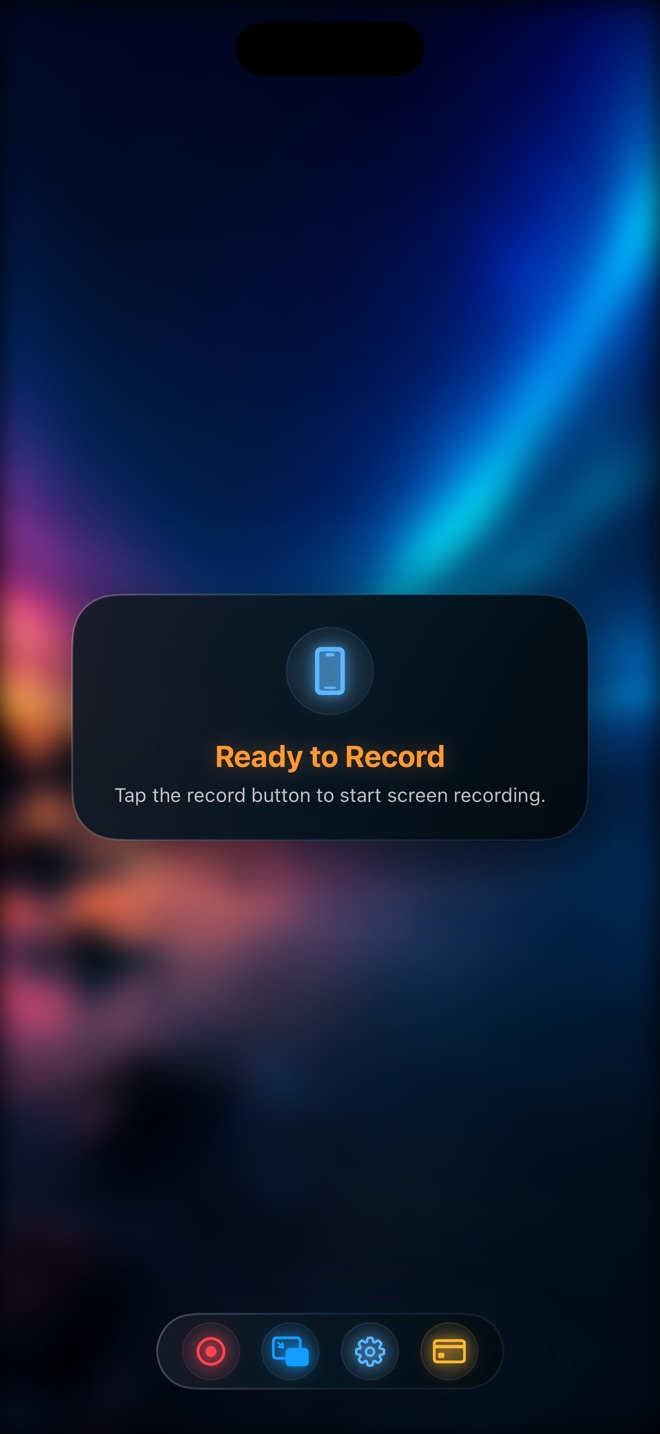
A missing system control is not repaired by buying a third-party subscription. First establish the system capture path using a harmless screen. Reel’s in-app broadcast start is another workflow, not the same Control Center layout.
Distinguish visible from usable
Tap the control only after preparing safe content, then check for the system’s countdown and recording indication. Stop the brief test normally and inspect the saved result. If the control exists but recording will not begin, record the exact message; that is a different failure from a hidden icon.
Apple notes that some apps do not permit recording their content and that screen recording cannot run simultaneously with screen mirroring. A failure limited to one source or a mirrored setup should not send you back to rearranging controls repeatedly.
Check who manages restrictions
If an account or organisation manages the device, ask the responsible person whether recording is allowed. Apple’s Screen Time guidance includes recording-related restrictions within its current settings. Do not present one changing restriction menu as identical on every iOS release.
Only the authorised owner or administrator should change an applicable policy. This article does not recommend defeating a Screen Time passcode or a managed configuration. If access is intentionally restricted, choose an approved alternative demonstration method.
Keep the diagnostic result simple
Record the model, iOS version, whether the control appears, whether the countdown begins and whether a harmless sample saves. These four observations help separate navigation, permission/policy and source-content problems.
After the control works, follow the recording guide for microphone, camera and the actual target app. Adding a button does not prove that all sound or protected content can be captured. Keep the first real take short enough to review completely.
Why do the instructions say swipe from a different edge?
Control Center gestures differ by model. Apple distinguishes Face ID devices from iPhone SE.
Will adding the control make every app recordable?
No. Source restrictions, mirroring and device policy remain separate limitations.