Record a keyboard-driven workflow without hiding the action
A keyboard workflow can look like unexplained magic on video: the screen changes while the pointer stays still. Narrate the command and its result, and test any recorder shortcut in the exact focus context where you will use it.
Identify invisible actions
Mark every step that uses a shortcut, typed command or modifier key. Say the application and action before the result appears. “In the editor, press Command-F to open Find” is easier to follow than silently opening a search field.
If a shortcut varies across operating systems or keyboard layouts, identify the demonstrated environment. Do not present a Mac modifier combination as universal. Use the app’s current menu label as a fallback when that helps viewers locate the same command.
Test recorder commands separately
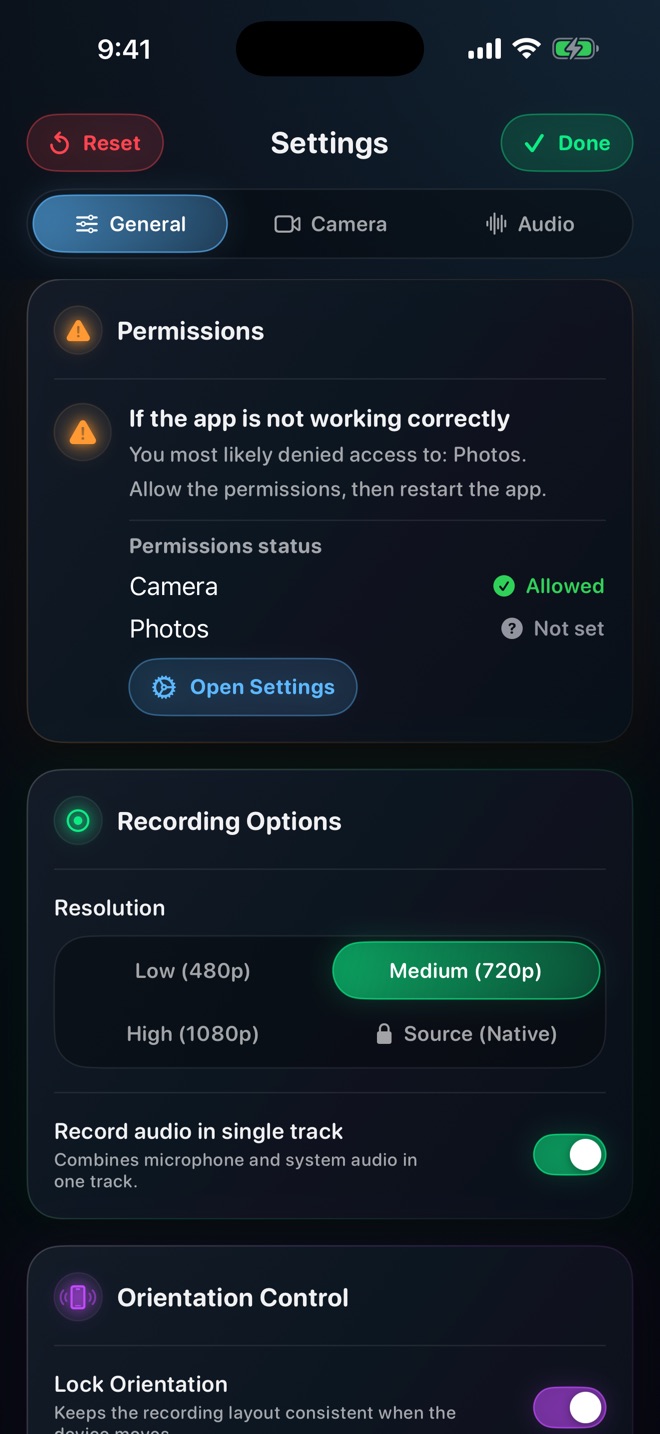
A shortcut handled by a foreground app may behave differently when another app has focus. Reel exposes recording shortcut settings, but that does not establish global hotkey behavior across every app. Test the planned start or stop action while the actual demonstration app is active.
Loom documents its own shortcuts and notes keyboard-layout limitations. Those combinations belong to Loom, not Reel. Copying a competitor’s keys into a Reel workflow can trigger an unrelated action or do nothing at all.
- Write the demonstration app’s essential commands.
- Check the recorder controls with that app in the foreground.
- Keep an alternate visible way to stop the recording.
- Record a short rehearsal and verify what happened in the saved file.
Show the result instead of every keystroke
After a shortcut, pause long enough to name the new state: the selected paragraph, opened search field or changed view. An editor text label can reinforce a complex combination, but it should be accurate and appear at the right time. Do not assume Reel automatically renders keystrokes.
For a terminal lesson, use demonstration values and review the visible command history. Avoid typing real passwords, tokens or private paths for the sake of realism. If an authentication step is not the lesson’s subject, explain the prerequisite and begin after it is safely completed.
Review focus and timing
Watch for accidental shortcuts caused by focus moving to the recorder or another window. If a command failed in the take, do not hide the failure with narration that claims success. Correct the sequence or explicitly explain the focus issue.
Check that captions distinguish modifier keys and do not turn a command into ordinary prose. Arte Soft publishes Reel; this guide explains a repeatable keyboard-demonstration method, not a guarantee of global shortcut interception or automatic sensitive-input suppression.
Can I assume a recorder shortcut works over every app?
No. Test it with the actual target app and focus state. Keep another way to stop the recording.
Do I need an automatic keystroke overlay?
Not necessarily. Clear narration, a brief accurate label and a visible resulting state can explain the action without capturing every key.