Choose a recorder with editing or a simple capture app
The right recorder depends on what happens after you press Stop. If the file goes straight to a colleague, editing features are clutter. If it becomes a polished tutorial, a capture-only tool means exporting into a separate editor.
Questions to answer first
Turn the answers into a list of required post-capture operations. A trim-only job may fit tools you already have; captions, redaction or combined takes require checking those exact operations in an editor.
- Will you send the file as recorded, or cut mistakes and pauses?
- Do you need callouts, captions or highlighted clicks added afterwards?
- Do you need to zoom into parts of the screen after recording?
- Do you combine several recordings, or add music and titles?
- How quickly does the video have to go out?
- Do you record on iPhone, iPad, Mac or all three?
What the built-in tools already do
Apple’s Photos app can trim a video by dragging handles on the timeline, and can save the result as a new clip so the original stays. On a Mac, a saved screen recording can be opened in QuickTime Player for supported editing and sharing operations. For many quick recordings, trimming the start and end is the only edit needed.
What dedicated editors add, according to their publishers
Telestream’s ScreenFlow tutorial list covers captions, annotations, freehand annotations, callouts, a layered timeline and batch export. Screen Studio describes automatic zooms based on where you click, cursor smoothing and export to MP4 or GIF, with shareable links. On iPhone, the Record It listing describes trim, rotation, playback speed, filters and adding a face-cam reaction after recording.
These are publisher descriptions, not test results. Try the specific feature you need with a short recording before relying on it.
Where Reel fits
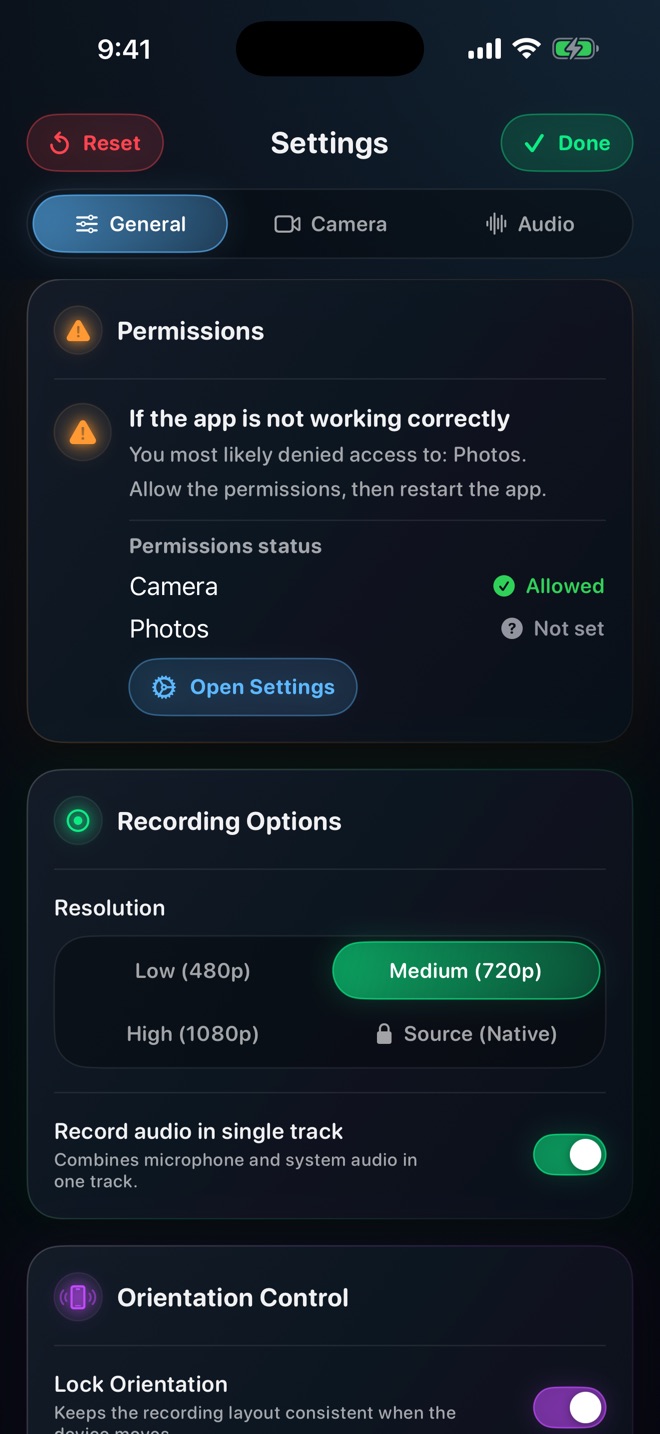
Reel focuses on capture. On iPhone, iPad and Mac it records the screen with a live camera overlay that you can resize and move, background blur or replacement for the camera, and your voice with app audio where the system and the app allow it. The result is an MP4 file. This guide does not assume Reel offers editing beyond capture; for cuts, use Photos or your editor of choice.
Three worked scenarios
Choose by the required output rather than the category name. Even a short bug report may need a careful redaction; a polished tutorial may need little editing if the source is already clear.
- Bug report for a developer: send it as recorded, perhaps trimmed. A capture app is enough, and editing risks hiding the detail the developer needs.
- Weekly team update with your face: a capture app with a camera overlay, plus a trim of the opening seconds.
- Public product tutorial with zooms and captions: record in any capture app, or in an editor’s own recorder, then edit, caption and export in a dedicated editor.
Write an edit handoff before choosing a tool
For a support clip, your handoff might say: keep the original; trim the empty opening; remove a test address across every affected frame; add checked captions; export a copy that plays on the recipient’s phone. Mark who will do each task and what file they must receive.
Open one short sample in the proposed editor. Check the required audio sources, caption workflow, redaction tracking and export format. If a required operation fails, change the tool or capture plan before recording the full session. This produces a concrete compatibility decision instead of a longer feature wish list.
Watch for workflow costs
Moving a file between apps can change it. Check that the editor opens your recorder’s files, including all audio tracks, and that exports play on the devices your audience uses. Keep the original recording until the edited version has been checked.
Is a recorder with editing always better?
No. For quick internal videos, extra features add steps without improving the result.
Can I add a camera overlay after recording instead?
Yes, in editors that support picture-in-picture, but the reaction will not be live. See the guide on live facecam versus reactions recorded afterwards.