Zoom a tutorial without losing context or text quality
Zooming helps only when the source contains enough detail. First make the interface readable during capture, then use a closer view to direct attention without losing the controls that explain where the viewer is.
Improve the source before enlarging it
Open the target app at a comfortable text size and remove unnecessary panels. A very large desktop squeezed into a small video can make every label tiny. Prefer a deliberate demonstration layout over recording an entire busy workspace and hoping an editor can fix it.
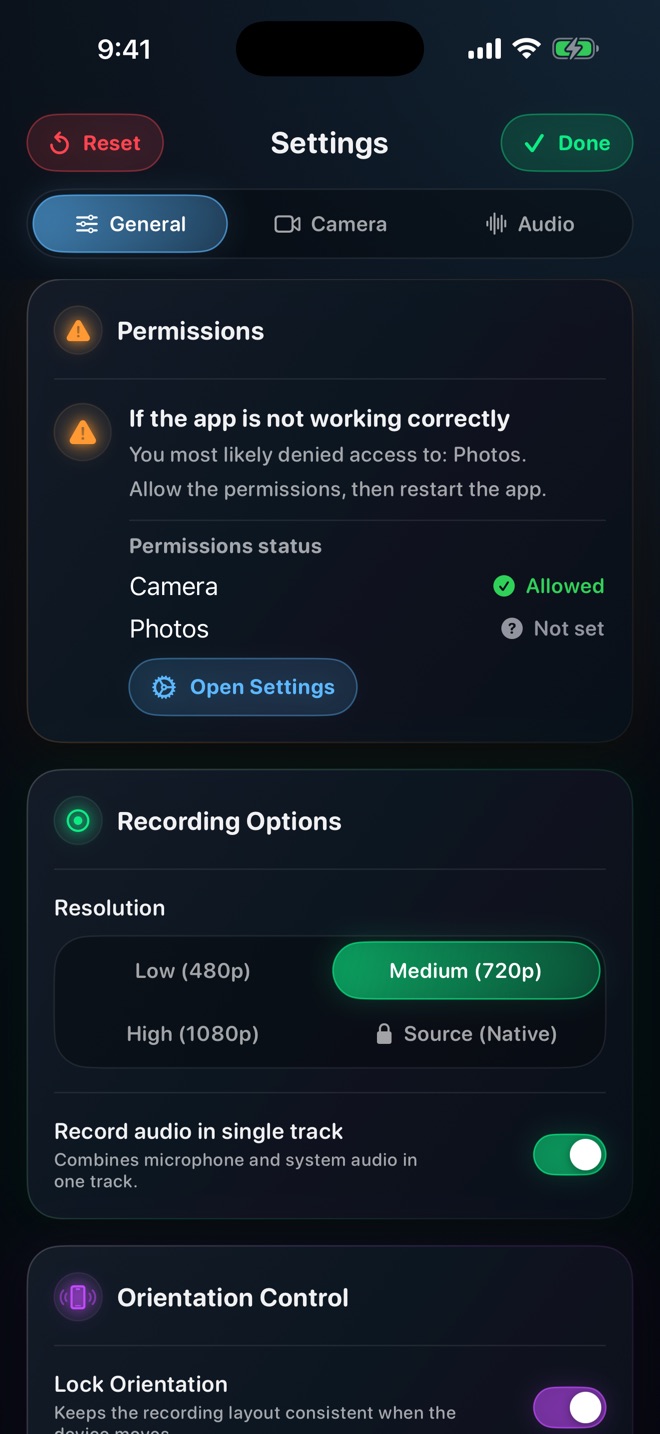
Reel’s resolution choices affect the saved capture. Source resolution is a Pro option; it preserves the source dimensions rather than inventing detail. A higher setting cannot make already blurred or very small source text inherently readable. Check a saved sample containing the smallest important label.
Choose what must remain visible
Define a focus region that includes the control, its label and the nearby context needed to find it. Zooming tightly onto a number while hiding its field name makes the video harder to follow. Start wide enough to show the navigation path, move closer for the explanation, then return before moving elsewhere.
For example, a filter tutorial can show the full table, focus on the filter menu and return to the resulting rows. The close view answers “which choice?” while the wider view answers “what changed?”
- Identify the smallest detail the audience must read.
- Check it in the actual exported viewing size.
- Choose a close region that retains labels and confirmation.
- Plan a return to the whole relevant interface.
Use the chosen editor’s actual tools
In iMovie on Mac, select a clip and open Cropping, then Crop to Fill to define a close view. Apple documents that timeline crop frame as 16:9. It is not an arbitrary portrait canvas. Apply the crop to a suitable section rather than hiding context throughout the whole lesson.
Screen Studio advertises automated zoom behavior for its own recordings. That is a different product’s editing feature, not a promise that Reel automatically follows clicks. You can make a useful tutorial with a simple intentional cut between wide and close views.
Check the result at small size
Watch on a phone or in the actual embedded player size. Read the key label without pausing; if you cannot, simplify the interface or recapture that segment with larger text. Avoid repeated zooms that make the viewer search for their place.
Inspect cursor movement, captions and camera placement during the closer view. These can cover the very detail the crop was meant to reveal. Arte Soft publishes Reel; capture settings and external editor effects are separate steps.
Can I recover tiny text by exporting at a higher resolution?
Increasing output dimensions does not reconstruct missing source detail. Improve the original capture or use a clearer explanatory insert.
Does every click need a zoom?
No. Reserve close views for details that would otherwise be difficult to see; keep navigation and results understandable.