Diagnose a stuttering screen recording with controlled samples
A smooth-looking live screen can still produce a jerky recording, and a good recording can stutter in an overloaded player. First locate the stage where the problem appears. Then change one workload variable while repeating the same action; a random list of “best settings” makes comparison harder.
Determine whether the problem is live, saved or delivered
Perform a simple repeatable action such as slowly scrolling a harmless document and opening one menu. Observe whether the app itself is jerky during capture. Stop and inspect the original in a suitable player, then compare the delivered copy if one was uploaded.
If only the hosted rendition is affected, investigate its processing or playback separately. If the original has the same skipped motion in more than one supported player, capture or encoding becomes a more useful lead. Do not infer the cause from one slow browser preview.
Create a baseline with fewer moving parts
Keep the source action and duration unchanged while temporarily removing optional camera effects, animated backgrounds or unrelated heavy applications you opened. Save the test with a meaningful name. Do not terminate unfamiliar system processes.
OBS’s performance guide explains that composition and encoding compete for resources and documents reducing output demands or scene complexity. Those are OBS-specific recommendations, not proof that its diagnostics or settings exist inside Reel.
Change one supported output setting
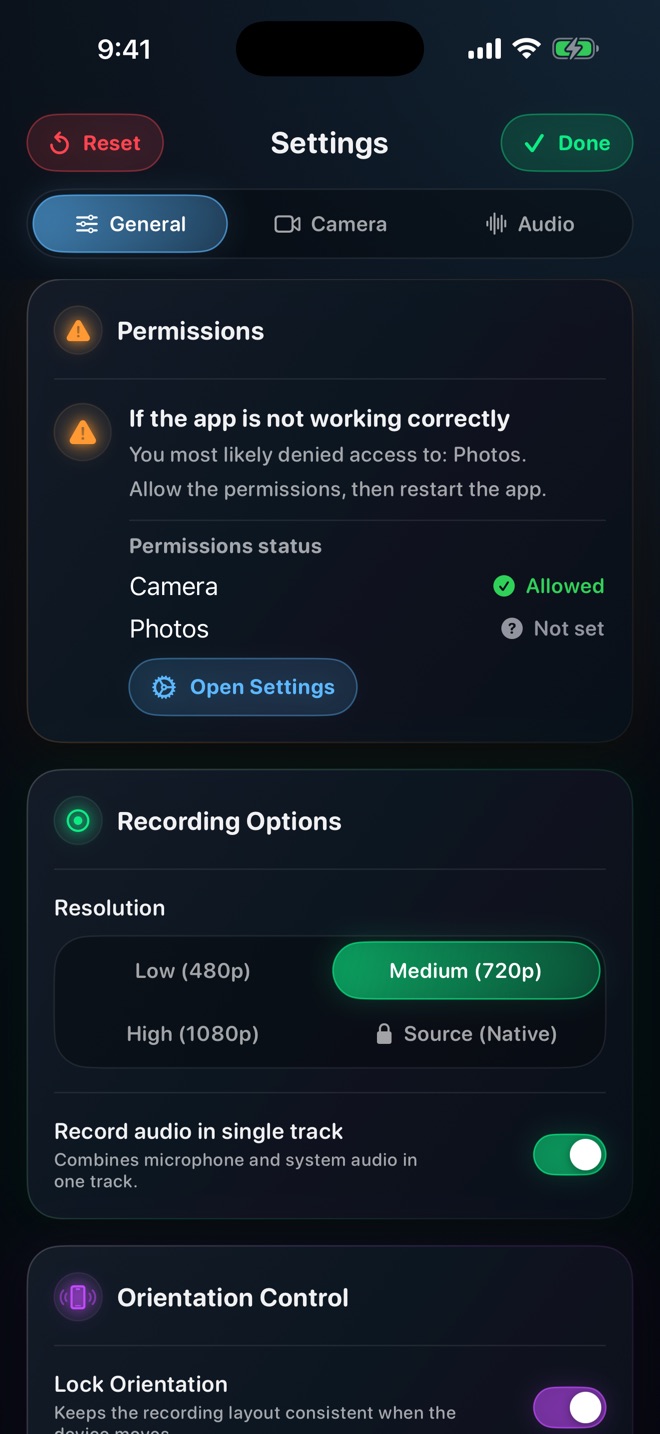
If the recorder offers a lower frame rate or quality choice, compare that one change against the baseline. Use the current platform’s actual controls. The inspected Reel source has platform-qualified frame-rate choices; it does not establish identical behaviour on every iPhone or Mac.
Review both motion and text. A lower workload may make the recording more consistent while reducing some detail. Choose based on the lesson’s acceptance criteria rather than assuming the largest number is always the most useful output.
Keep a small evidence table
For each sample, note device, app versions, duration, source action, camera/effect state, quality and frame-rate choice where available. Add a short observation such as “menu motion pauses in original at twelve seconds,” not an invented dropped-frame count.
This is a diagnostic exercise, not a benchmark from this publisher. If a recorder exposes actual dropped-frame or encoding-overload statistics, keep those separately and identify the tool that reported them. A preference value is not a measured delivered frame rate.
Stop when a useful difference is established
If removing an effect consistently changes the result, reintroduce optional parts one at a time. If every sample fails, preserve a short harmless original and report the reproduction to support. Include whether the live action also slowed down.
Do not re-encode an already damaged motion sequence repeatedly and describe it as recovered frames. A smoother playback copy may help delivery, but it cannot prove missing visual information was reconstructed. Re-record the necessary action when reliable evidence is required.
Does reducing resolution guarantee a fix?
No. It is one controlled workload change. Determine whether the problem is capture, source performance or playback first.
Can I report dropped frames by counting visible pauses?
Describe what you observed. Use a numeric dropped-frame claim only when a named tool actually reports that metric.