Choose SDR or HDR for a Mac screen recording
A screen recording is only useful if the recipient can see it correctly. For interface tutorials, the delivery path often matters more than choosing the most ambitious capture option. Decide what needs to survive the journey: readable controls, reliable color or a specific HDR demonstration.
Know which setting you are choosing
Apple documents SDR using H.264 and HDR using HEVC in Screenshot on supported Macs running macOS 26 or later. Availability depends on that hardware and software combination. A format option in Apple’s recorder does not establish an equivalent option in Reel.
Resolution, dynamic range and file container answer different questions. A large frame does not necessarily mean HDR, and an MP4 extension does not tell you everything about decoding support. Avoid using “high quality” as a substitute for naming the actual requirement.
Start with the destination
Ask where the recording will be watched: an internal browser player, an older laptop, a messaging app or a known HDR display. If you cannot control the destination, compatibility is a practical priority. If the lesson specifically demonstrates HDR material, preserving that range may instead be part of the task.
For example, a tutorial about changing a calendar setting does not need to demonstrate bright highlights. A color-grading comparison might. The first needs faithful, legible interface content; the second needs a documented color workflow beyond merely enabling a capture option.
Compare an ordinary scene and a difficult one
Create a short sample containing text, a neutral background and any bright or dark content that matters to the lesson. Keep the sample otherwise identical when comparing available settings. Then send each result through the actual delivery route.
Inspect the delivered copy, not only the preview on the recording Mac. Watch for text that becomes hard to read, backgrounds that look unexpectedly gray, or colors that differ enough to change the explanation. These observations justify a closer look at the export and playback path; they do not identify the cause by themselves.
A compatibility-first checklist
- Identify the viewer’s player and display when possible.
- Check which formats the chosen recorder actually offers on this Mac.
- Capture a short representative sample rather than the whole lesson.
- Test the saved original and the delivered copy separately.
- Choose the format that preserves the content the audience needs, and keep the original for later export changes.
Reel exports still need a recipient test
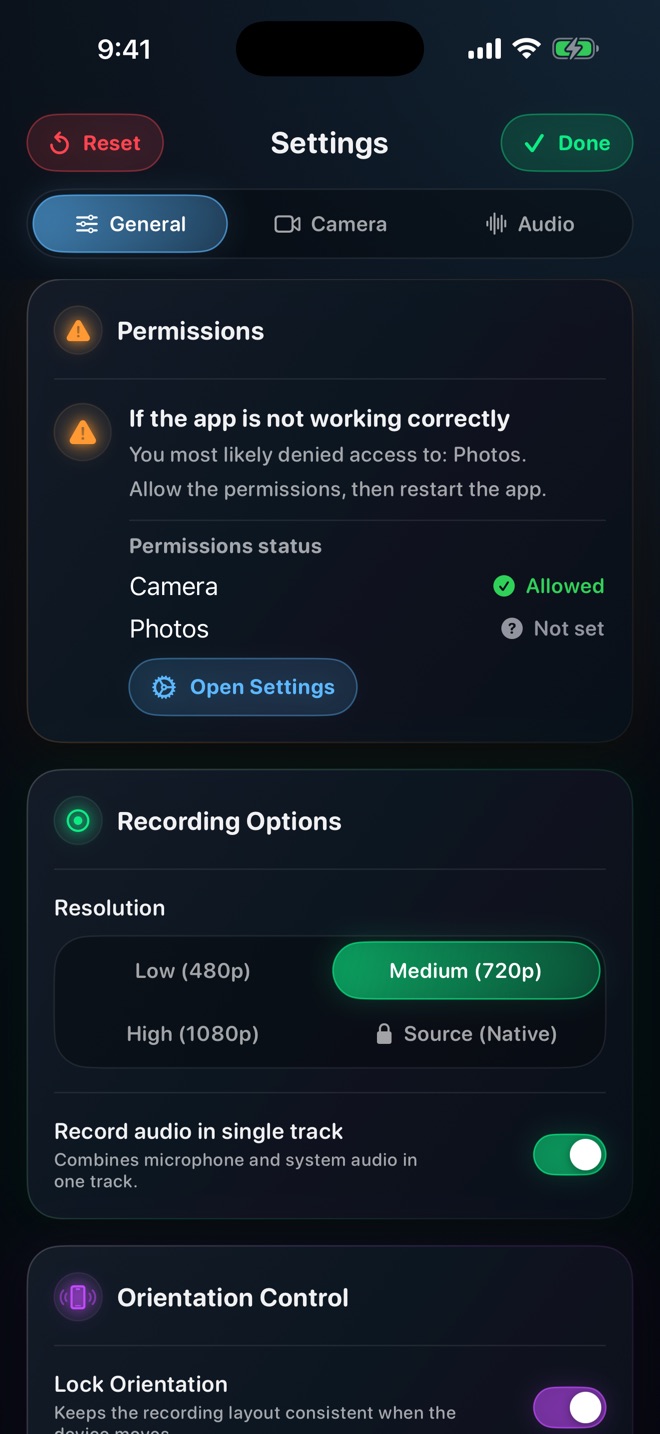
The inspected Reel Mac recording path writes H.264 video in an MP4 container. This guide does not claim Reel offers an HDR toggle or that every MP4 will play in every editor. Use a short exported sample to confirm the receiving workflow before producing a long series.
If a delivery looks wrong, avoid repeatedly converting the only original. Work from a retained source and make one controlled export change at a time. Record which file the recipient tested so that an old download is not mistaken for the revised result.
Is HDR always sharper?
No. Dynamic range and spatial detail are different properties. Judge the actual text and content in the delivered video.
Why does the same recording look different elsewhere?
Display, player, encoding and processing differences can all matter. Compare the original with the delivered copy before blaming capture.
Does Reel have the same HDR setting as Screenshot?
That is not established here. The Apple format controls are explicitly Apple’s; Reel’s inspected Mac export path uses H.264 in MP4.