Crop a screen recording without losing important text
A crop should remove irrelevant space, not the context that explains the task. Before choosing a new shape, identify every control and result the viewer must see. The best-looking opening frame may be the wrong crop for the rest of the recording.
Separate cropping from fitting
Cropping removes part of the picture. Fitting keeps the picture inside a chosen canvas, potentially leaving unused space. Stretching changes its proportions. These approaches can produce the same outer dimensions while treating the interface very differently.
For a portrait phone video, cutting down a wide desktop capture can make a single panel readable. It can also remove a sidebar, a dialog or the result of the action. If the full interface matters, a fitted frame or a more deliberate sequence may be preferable to filling every pixel.
Inspect the complete sequence first
Scrub through the recording and note the widest menu, the lowest button and the final result. Include moments when the camera inset or pointer moves. Choose the crop only after you know where the important material travels.
Imagine a lesson that begins with a form and ends with a confirmation at the top of the screen. A crop centered on the form fields might look excellent until it hides the confirmation. The viewer then sees the action but not whether it worked. Expand the crop or use separately framed segments in an editor.
Use Photos for a straightforward iPhone crop
Apple’s Photos editor supports cropping videos: open the video, choose Edit and Crop, then adjust the frame or select a ratio. Review before saving. With iCloud Photos, edits can synchronize across your devices, so do not treat another synced device as an untouched backup.
A simple Photos crop is useful when the required region stays in one place. If the focus moves during the tutorial, use an editor with the necessary reframing controls or make separate excerpts. Do not assume a static crop tracks the active control.
Check the smallest text, not just the main subject
A video that looks sharp in a large editing window may be difficult to read after it is embedded in a page. Preview at approximately the size a recipient will use. Read the actual labels rather than judging the overall impression of sharpness.
Cropping cannot recreate detail that was not captured. Enlarging a small area may make letters bigger without making them clearer. When the source is inadequate, recording that portion again with a more focused layout can produce a better result than repeatedly exporting larger files.
A crop review checklist
- Retain an original before making a delivery version.
- Mark the required controls and result across the full recording.
- Choose a frame that includes those elements, not merely the opening screen.
- Check menus, captions, camera placement and pointer movement at the edges.
- Export or save the intended version and inspect it at the destination’s viewing size.
- If context is missing, widen the frame or redesign the excerpt instead of stretching it.
Reel’s capture size is not a fixed social canvas
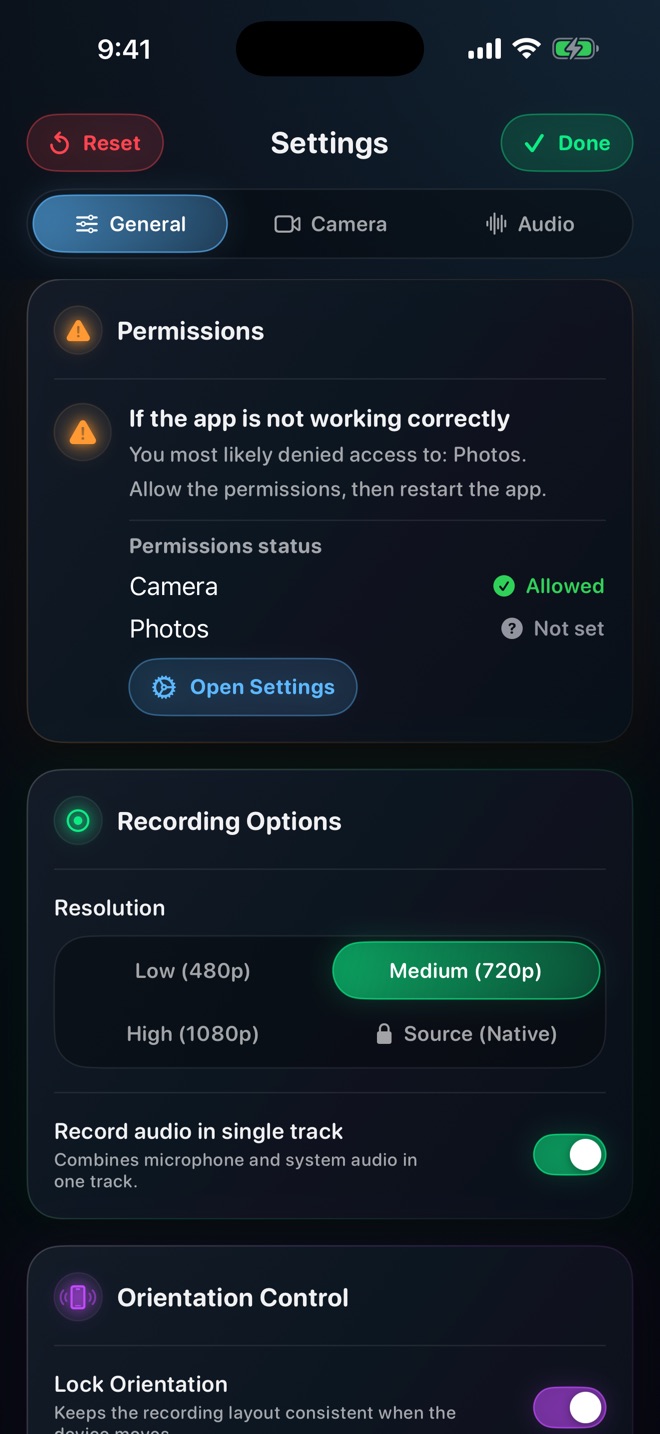
Reel’s quality settings preserve the source aspect ratio; choosing a resolution does not make every recording exactly 9:16. Plan the destination format separately. The cropping procedure in this guide uses Photos or a suitable editor, not an assumed Reel crop tool.
Also inspect any private material that remains inside the new frame. A crop can remove an edge, but it is not a complete privacy review of names, messages or reflections elsewhere in the video.
Does 1080p mean the recording is 9:16?
No. Resolution and aspect ratio are different properties. Check the source dimensions and the destination canvas.
Can a crop follow a moving menu?
A static crop cannot. You need an editor with suitable reframing controls, separate segments or a wider frame.
Will enlarging a crop restore tiny text?
No. It can enlarge the existing pixels but cannot guarantee readable detail that was absent from the source.